
Ease of Use
I would rate Kinsta a 4.2 out of 5.
Here’s why:
- The process of adding a new site on Kinsta (install WordPress, clone an existing environment, or start without WordPress) is streamlined and user-friendly.
- The lack of cPanel may deter users who prefer hands-on control over server settings and configurations.
- The option to start without WordPress presents a mixed experience — while this offers a learning opportunity, it might pose a challenge for less tech-savvy users.
Kinsta scores high here, thanks to its intuitive setup process and user-friendly interface, making it an excellent choice for users seeking a managed hosting solution.
Hosting Setup
Kinsta recently rebranded its website and portal which included more than changing their color theme from purple to red-orange.
We already have a test account that was created way before they rebranded —I can’t show how everything looks like from the start, but I can show you how it looks now.
When you add a new site, Kinsta will present you with three options:
- Install WordPress
- Start without WordPress
- Clone an existing environment
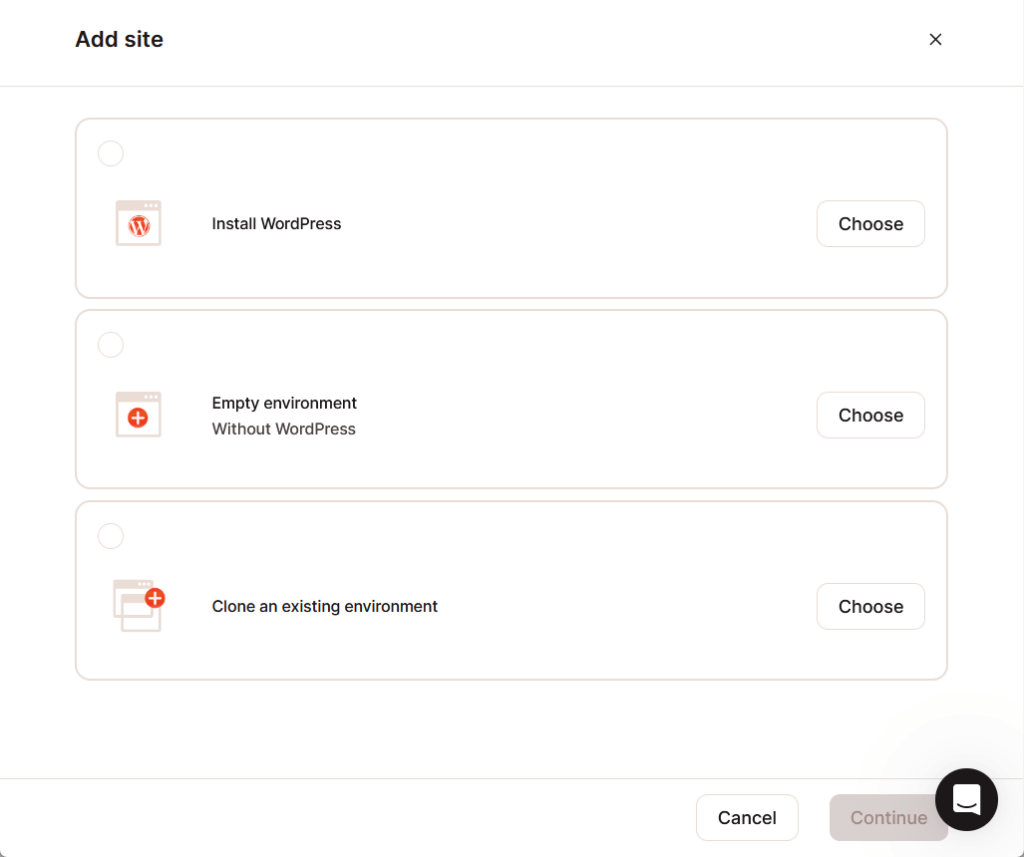
If you choose to install WordPress at the start, the next step is to complete the site options like site name and data center location.
For the data center location, you will be able to choose from 36 data center locations — choose the one closest to your target audience.
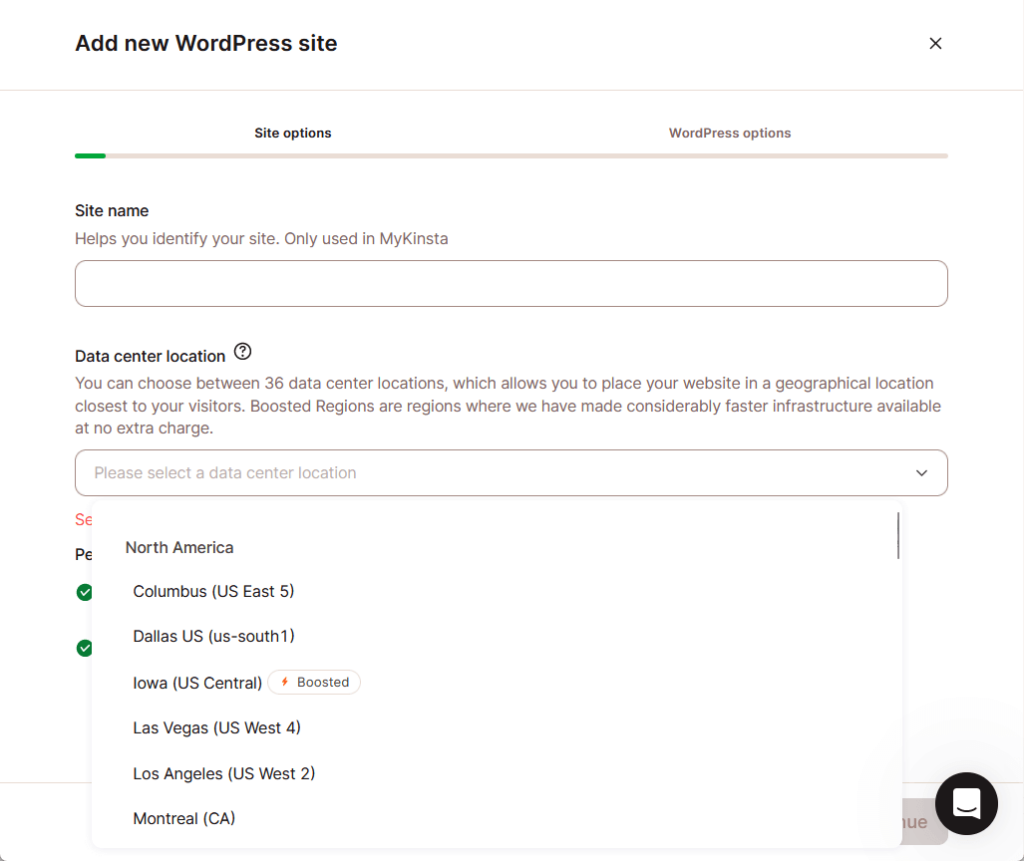
That will be followed by complete WordPress options like the site title, the admin username and password, as well as some basic plugins.
If you proceed with WordPress, you will still end up on a similar page where you can enter the site name and select a data center location.
⛔ Warning: If you choose to proceed without WordPress, you can still install it later but you would need to use a command line interface or by using SFTP.
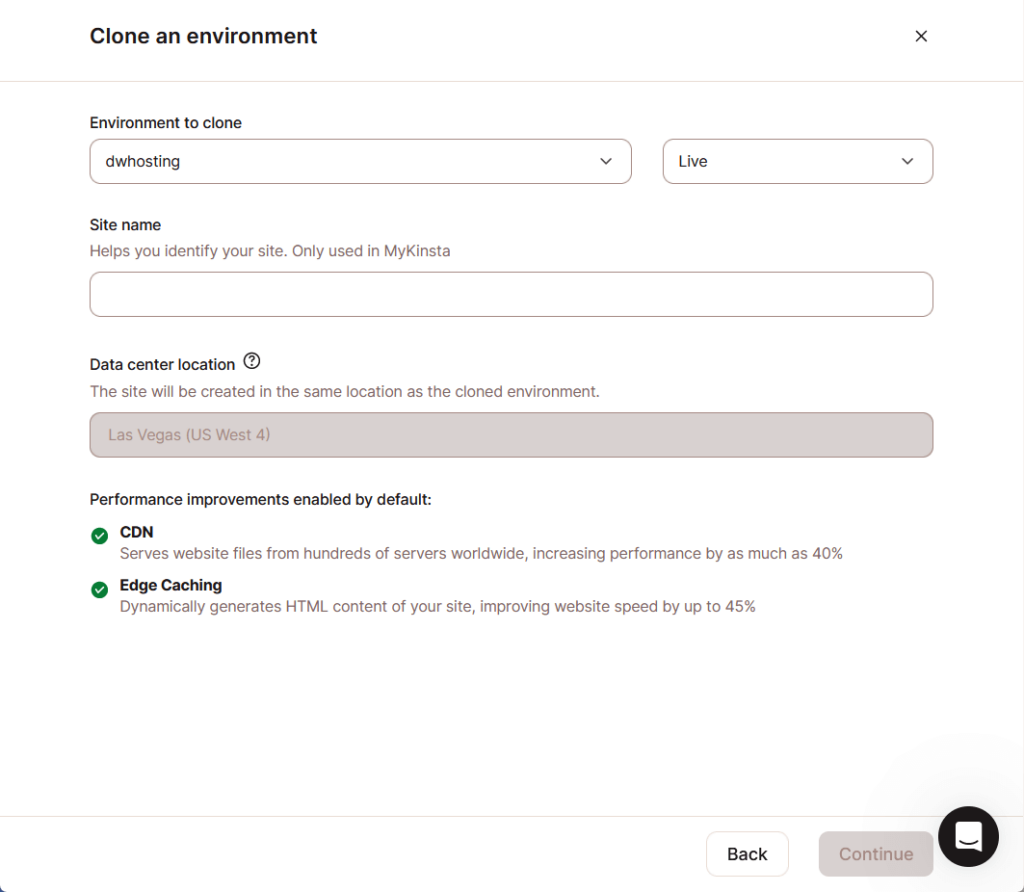
If you choose to clone an existing environment, the site name and data center location options are still there.
But this time, you will need to choose the environment to clone:
If you’re a first-time user, I suggest you go with the simplest route and just install WordPress right away.
The setup isn’t that flashy but it isn’t complicated either — and you will still end up with a basic website setup (quite similar to the setup process of other hosting).
User Interface
The question now is — what does it look like inside?
The recent rebranding looks good, though what the portal looks like before still looks as good and elegant.
After logging in, you will see the dashboard:
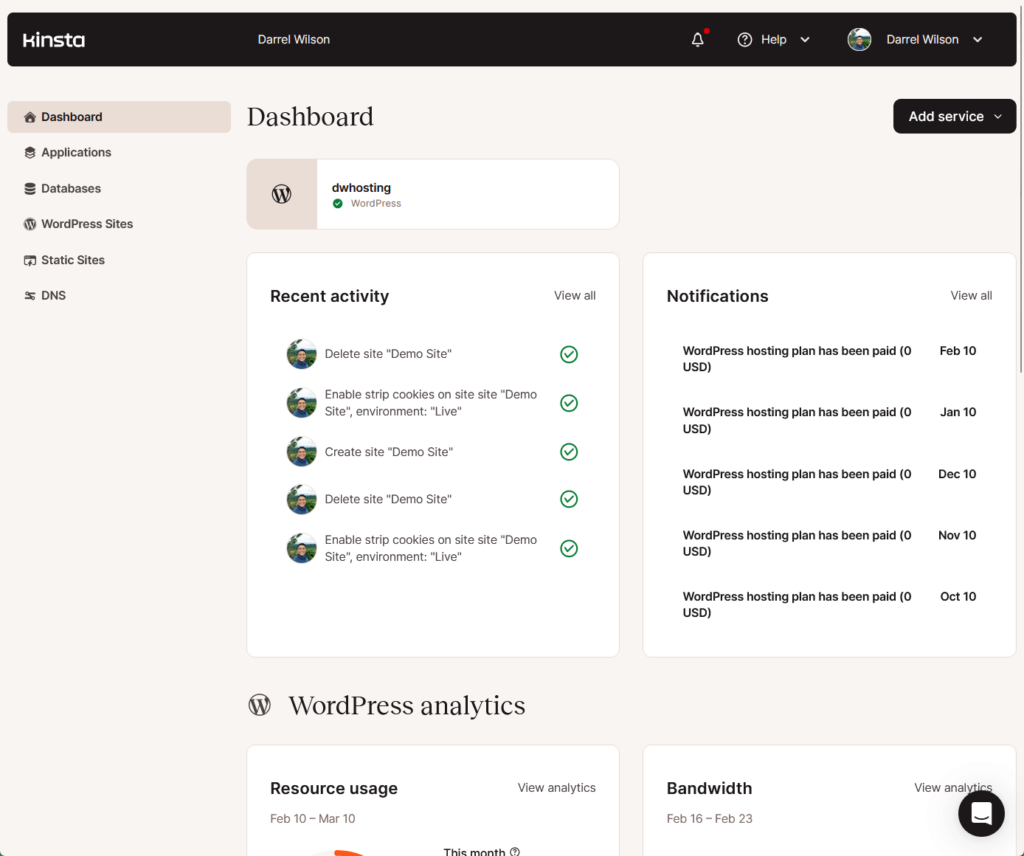
You won’t see it much from the screenshot above, but the dashboard has some nice infographics on different WordPress analytics like:
- Resource usage
- Bandwidth
- Unique visits
- CDN usage
If you go to the site details, this is what you will see:
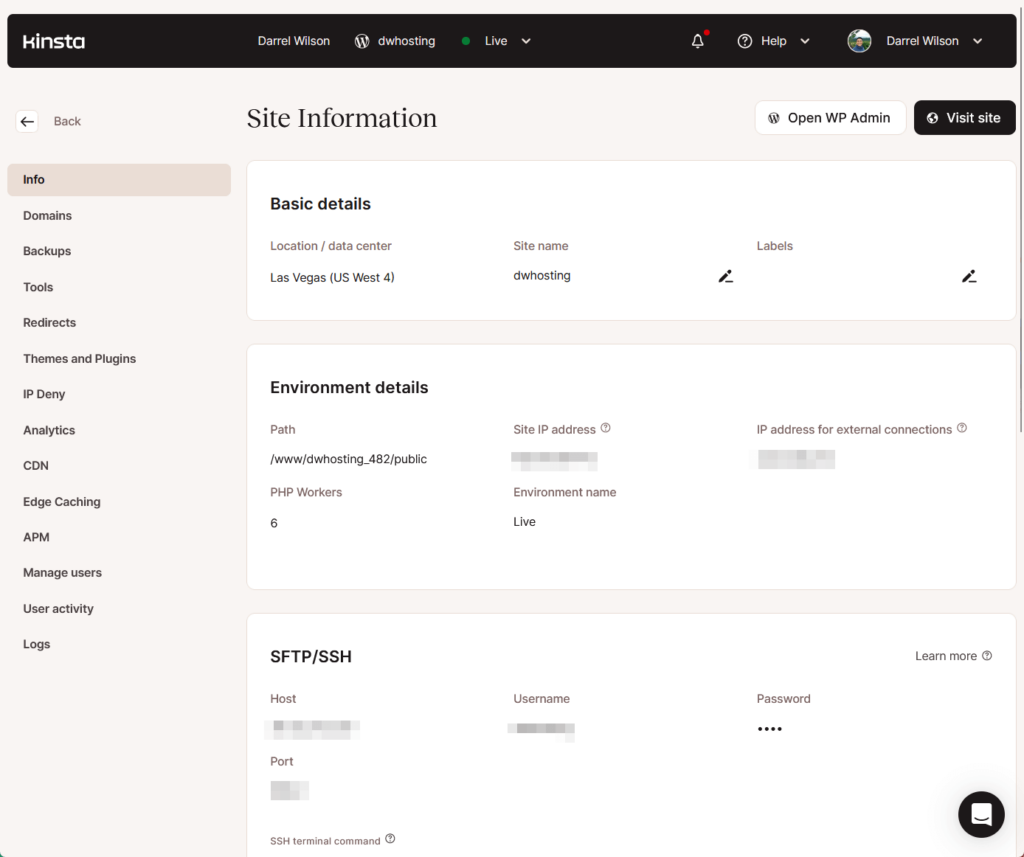
Kinsta’s products related to website hosting are considered a managed hosting service, which is why you won’t see any buttons leading to the cPanel.
On the bright side, it has everything you need to manage on your side like the domains, backups, caching, and even tools like analytics and force HTTPS, and more.
There’s literally a single page dedicated to tools you can use in Kinsta:
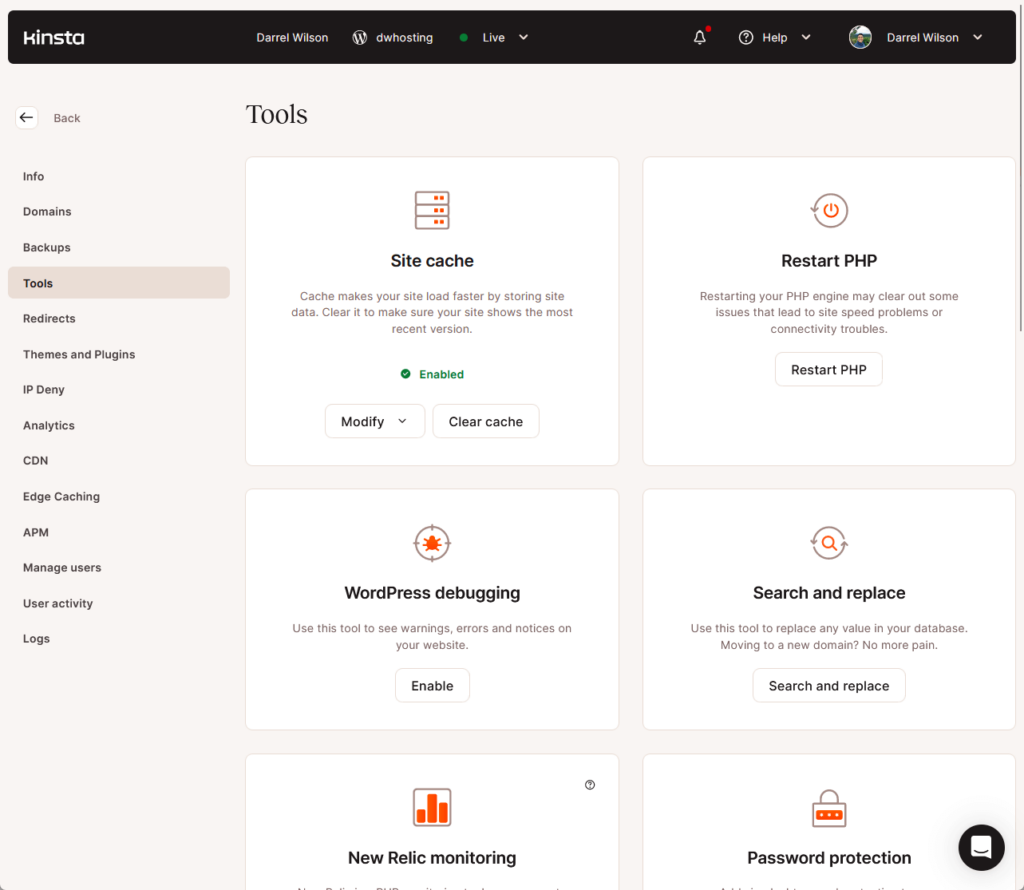
Kinsta is a good managed hosting service where you can easily get to where you need to go (using the left-hand panel).
The screen doesn’t look crowded and just has the right space over the different elements that you can click.
👋 My thoughts here
In terms of ease of use, Kinsta is one of those hosts where everything just clicks on its place and you won’t have trouble finding things out.
However, I want to point out two things here:
- No cPanel access
- Starting without WordPress
Not having any cPanel access is actually normal for managed hosting since they do all the server maintenance work.
But the point remains that not having access to cPanel is a drawback for users who need to change certain things on the server.
For starting without WordPress, I actually thought there would be more options here — like maybe a one-click installation button.
Don't overlook the bedrock of any successful website — its hosting service.
This is where Hostinger strides in, bridging the gap between affordability and powerful performance.

Discover the Hostinger advantage for your WordPress site:
- Enjoy a 99.9% uptime guarantee
- Affordable pricing at just $2.49/month (use the code darrel10 to get a discount)
- Global performance and reach with Hostinger's optimized hosting platform
Choosing Hostinger means you're not just selecting a hosting service:
You're opting for a partner dedicated to ensuring your online venture thrives
Features
I would rate Kinsta a 4.0 out of 5.
Here’s why:
- Kinsta offers a well-rounded suite of features tailored to enhance the WordPress hosting experience.
- A drawback is the introduction of paywalls for certain advanced features, such as premium staging environments and additional backups.
- While the managed hosting model comes with substantial benefits, it inherently limits user control and flexibility in certain areas.
Kinsta's features rate highly for their focus on performance, security, and ease of use, making it a compelling choice for WordPress users looking for managed hosting.
⚠️ Note: If you’re looking for what each hosting plan brings to the table, you can find them in the pricing section of this review as what I’ll be talking about here are hosting features.
With that, here are some notable features of Kinsta:
1. Hosting Panel
Like I explained earlier, Kinsta doesn’t let you access any server control panel — but they have a sort of hosting-site panel.
From here, you can access different features such as:
- Domains
- Backups
- Tools
- Analytics
What if you need to access your site files directly or your site database?
Well, you can still do so using SFTP/SSH and a direct database access — you can find the credentials and information under the info page.
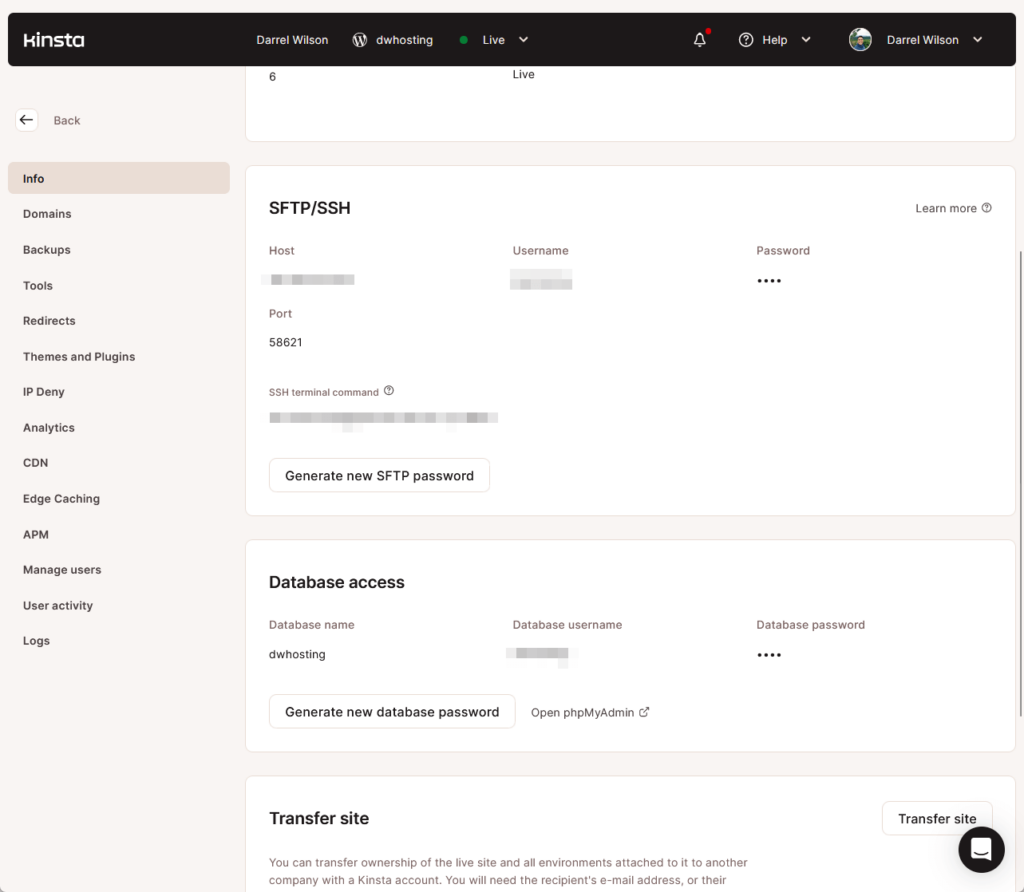
The panel is also where you can control the Kinsta features that come with your hosting.
For example, Kinsta takes backups of your site every day and each daily backup is stored for 14 days only.
You can access those daily backups from the panel along with hourly (add-on), manual (up to 5 backups only), and others.
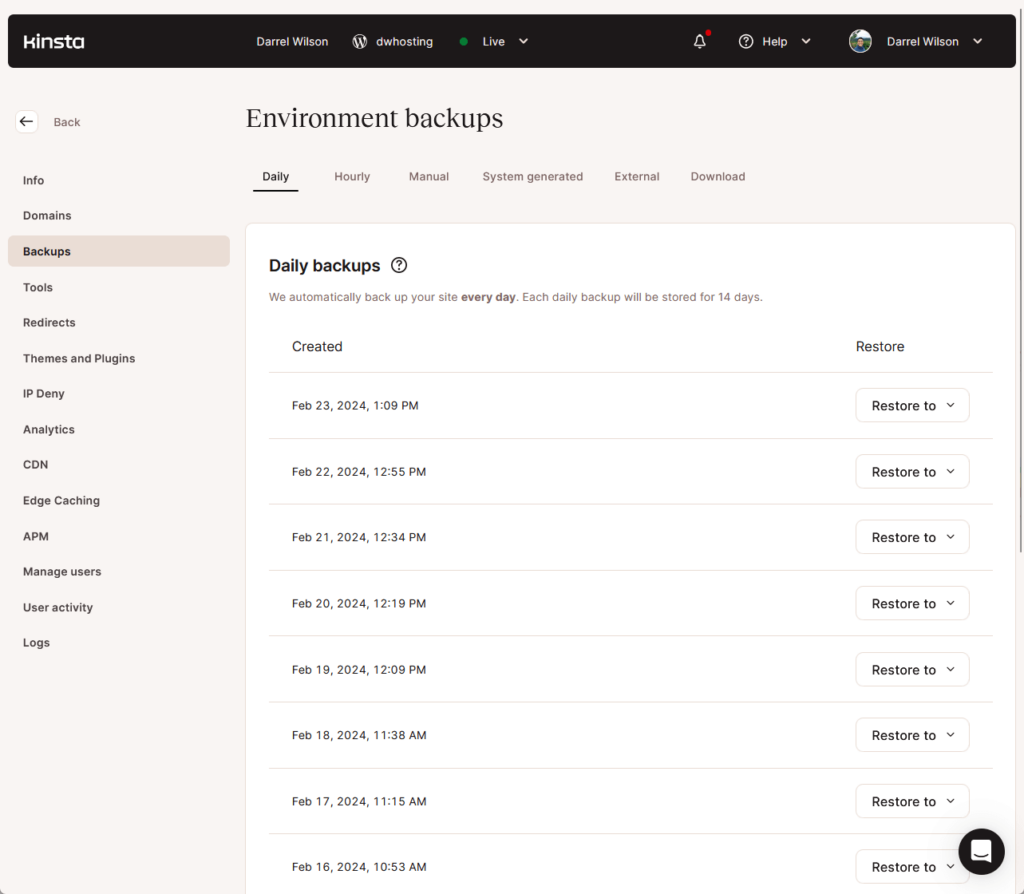
There are also special tools available in the panel such as:
- Site cache
- Search and replace
- Password protection
- Force HTTPS
All of them can be accessed within the tools page in the panel:
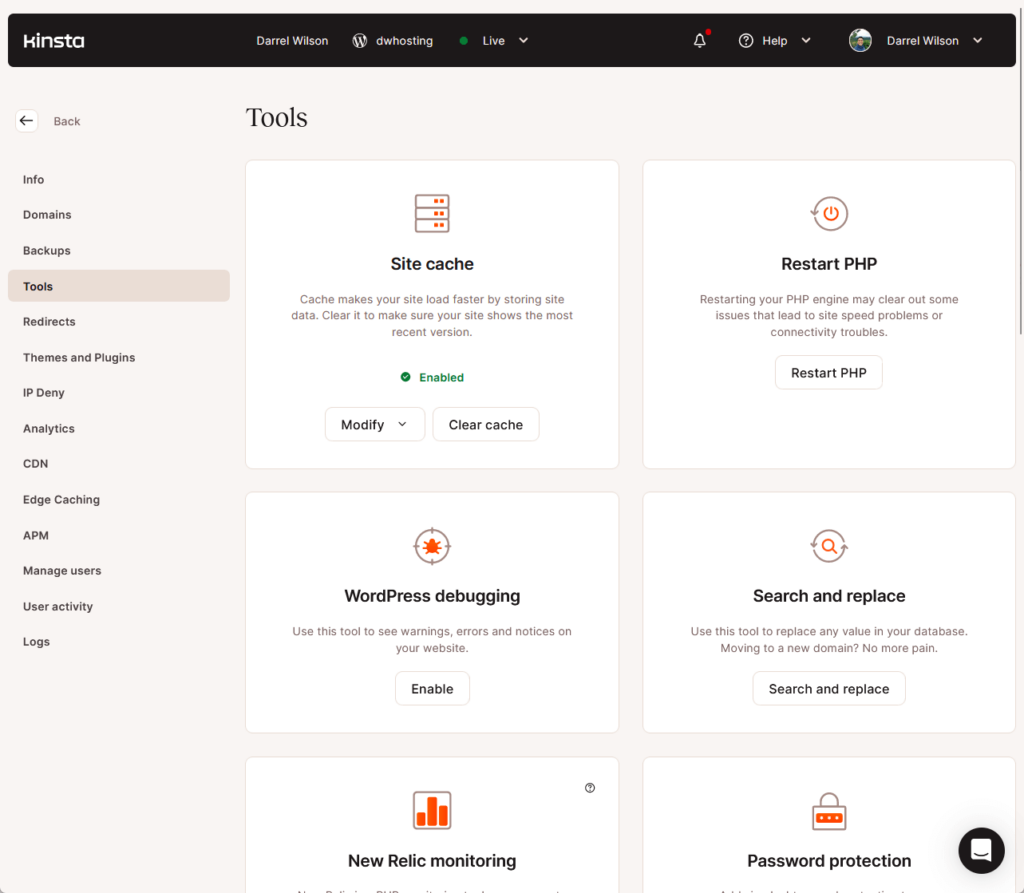
Suffice it to say that most of what you need to access, besides tinkering with server settings, can be accessed from the panel.
2. Free CDN
Kinsta also offers a free CDN service which is automatically enabled on any new WordPress website that you create.
You can check it out under the CDN page in the panel:
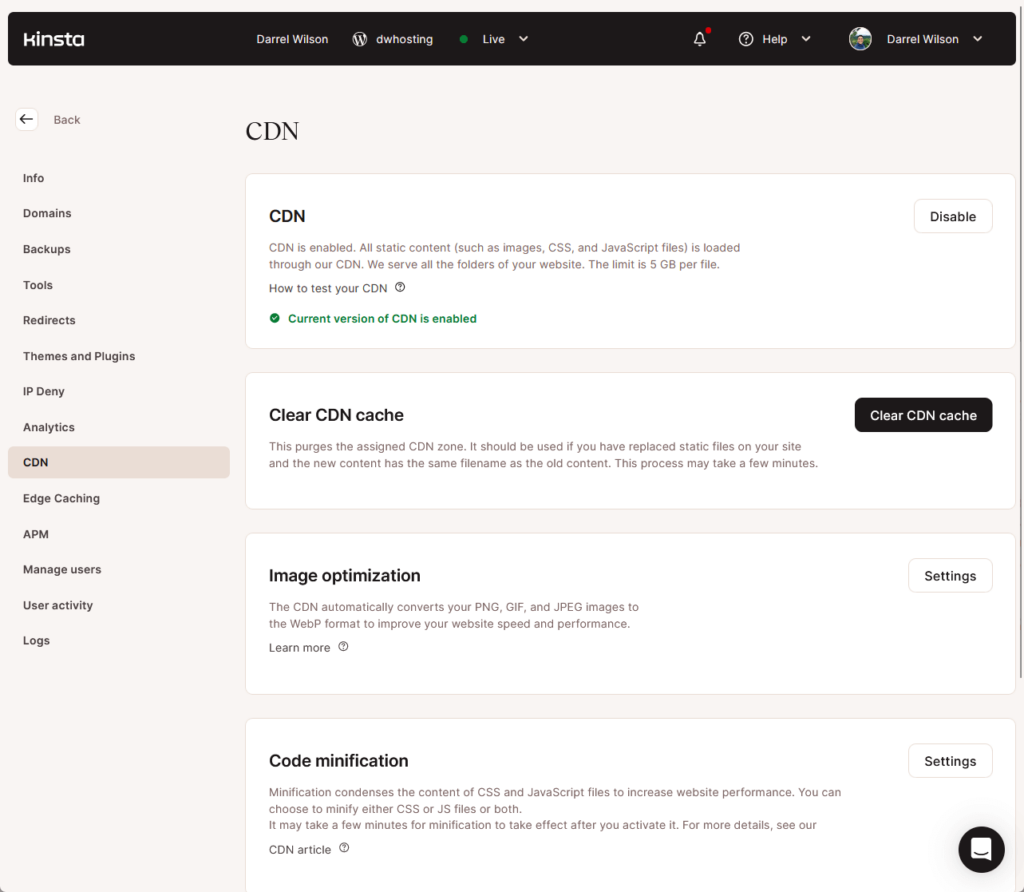
Under this page, you can disable the CDN service if you want to opt out of it or you can also clear the CDN cache (useful in replacing static files).
There are also other tools available here such as:
- Image optimization
- Code minification
- Exclude files from CDN
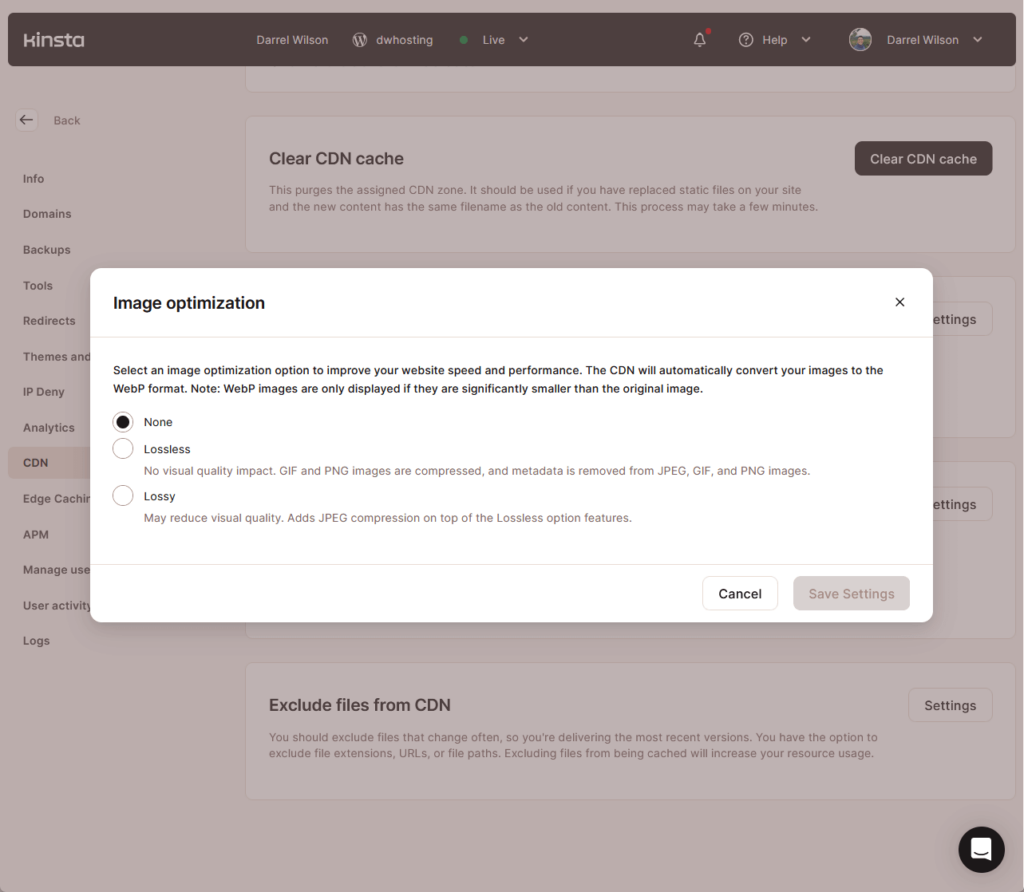
These features can save you a lot of money as you won’t have to subscribe to third-party services or plugins.
3. Edge Caching
Besides the site cache tool, there is also this Edge Caching feature that lets you save your page cache in a Cloudflare server.
It’s also automatically enabled on new sites and you can check it out under its page in the panel:
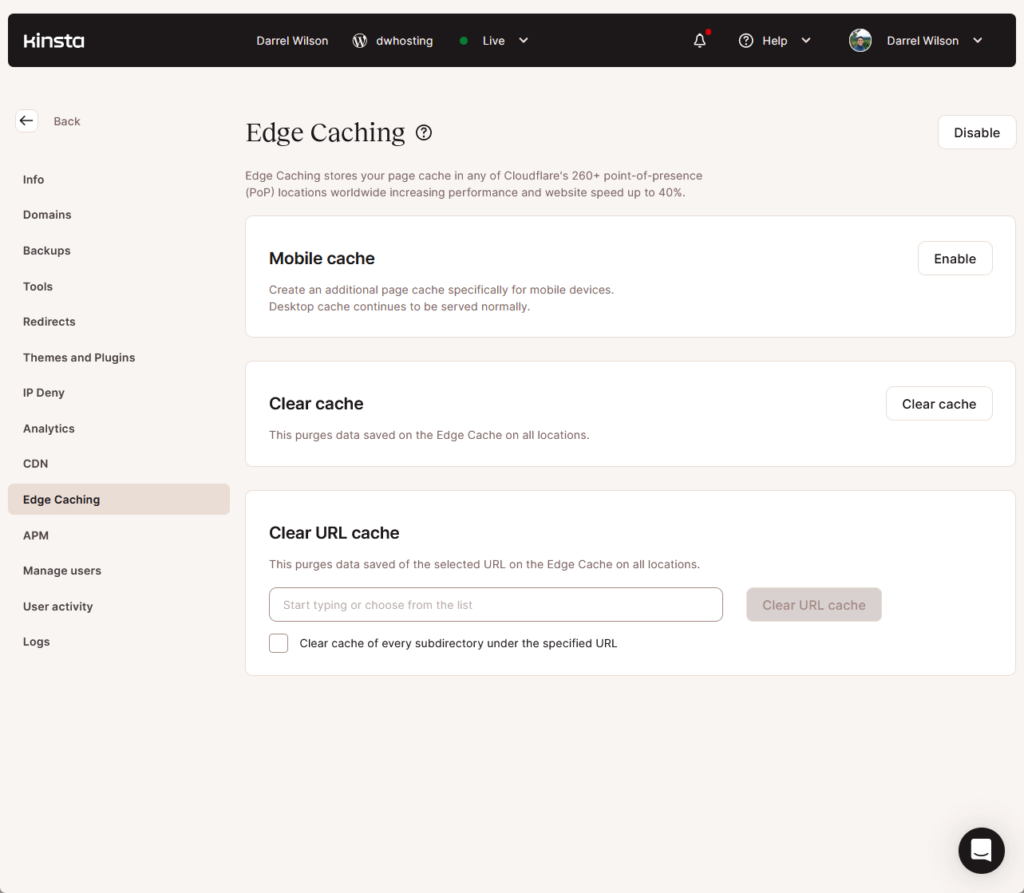
However, this feature’s extension to the mobile cache isn’t automatically enabled — so you would need to enable it yourself on this page.
⚠️ Note: You won’t be able to enable the Edge Caching feature if the password protection feature is enabled as these two aren’t compatible.
4. Free Staging Environments
Kinsta also provides free staging environments that are easy to set up.
Once you’re on the site information page, all you have to do is click the environment button and select the create new environment option:
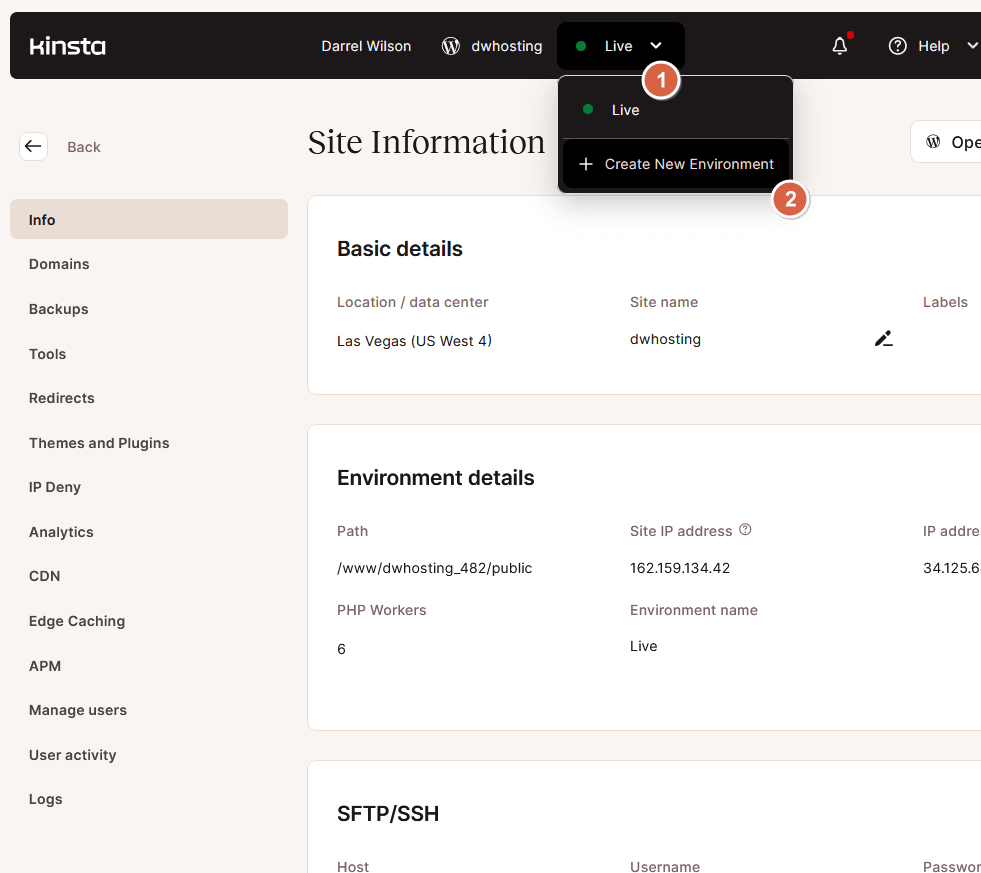
There are two options here:
- Standard environment is the free option
- Premium environment costs $20/month
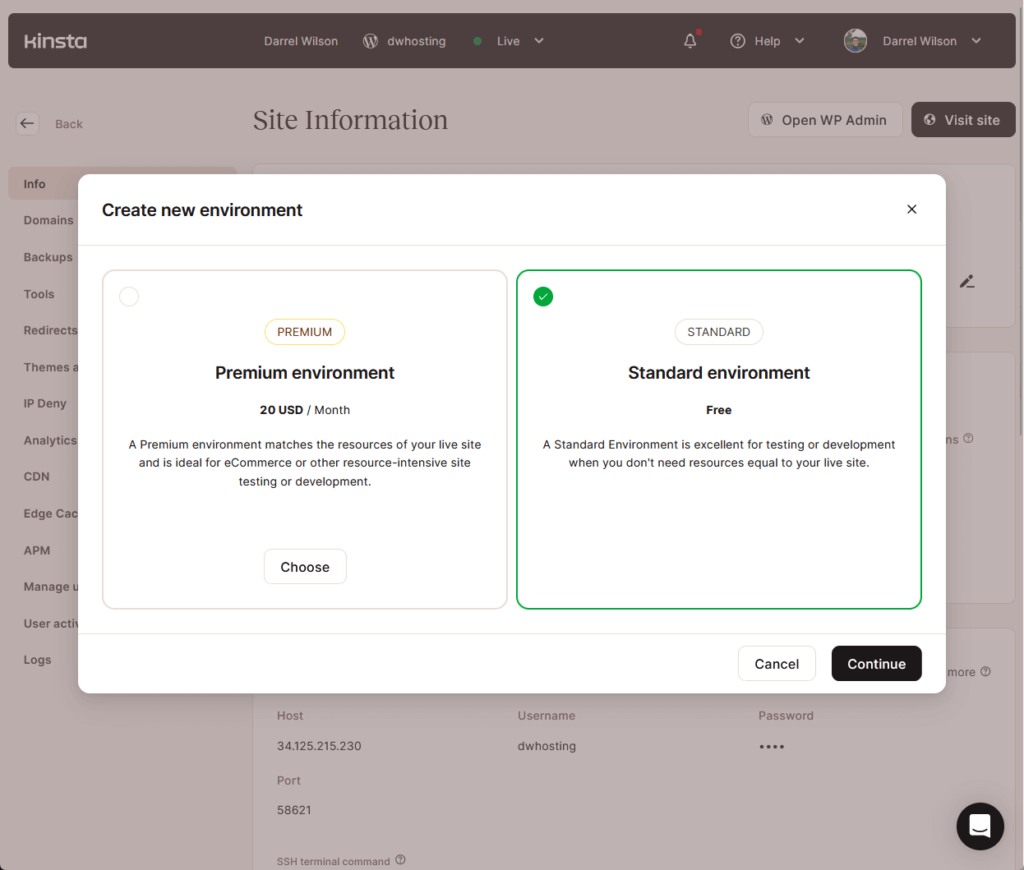
The difference between is that the premium environment will match the resources of your live site, ideal for bigger and ecommerce sites.
Once you go through with the standard environment, you will have to choose from three options:
- Clone an existing environment
- Install new WordPress
- Empty environment
This is a nice feature since you won’t need a staging plugin in case you need to test out new features, plugins, or themes.
👉 Related: Best Staging Plugins for WordPress: Free and Paid
👋 My thoughts here
Besides the limitations that a true managed WordPress hosting brings, I have no complaints over here over the features themselves.
For example, new users would love the simplified hosting setup and the user-friendly interface (in fact, they can leave it as it is).
Unfortunately, I think it would be better if Kinsa doesn’t put a paywall on some of its features like premium staging environments and extra backups.
The worst is that increasing the PHP memory limit to 512 MB will cost you $50/month/site (and if you don’t know, this is vital for some themes and plugins).
Reliability
My rating here is 4.8 out of 5.
Here’s why:
- Kinsta's uptime of 99.99% over the past year, with only 24 minutes of downtime, is exemplary.
- While Kinsta's performance grade of 77/100 may not be the highest among its competitors, it's more of a nuanced consideration.
- Kinsta's average load time of 1.26 seconds is the fastest among the compared web hosts, underscoring their commitment to performance and efficiency.
Kinsta's reliability is among the highest in the hosting industry, marked by exceptional uptime, minimal downtime, and outstanding load times.
Performance
For the performance, I actually keep an eye out on 20+ web hosting services via Pingdom since they’re the ones we’re using in Darrel’s videos.
In terms of uptime, Kinsta was up for 99.99% of the time for the past year — it only got a downtime of 24 minutes.
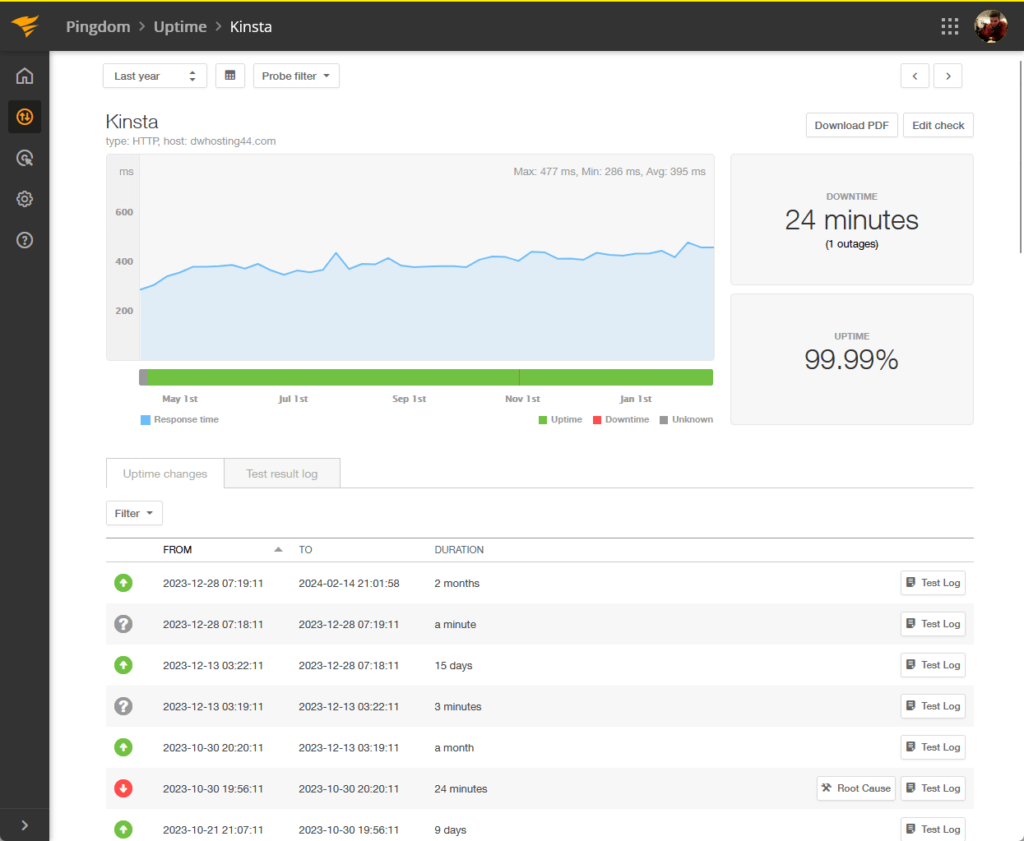
⚠️ Note: For the hosting plans, we usually get the cheapest one from each web hosting service. Well, if their lowest plans suck, we can’t expect much from their more expensive options, right? We also use the same Elementor template kit and plugins.
If you don’t yet, that’s actually a pretty good score, especially when you consider that the website has only been down for 24 minutes the whole year.
For the page speed, Kinsta had an average load time of 1.26 seconds and got a 77/100 performance grade.
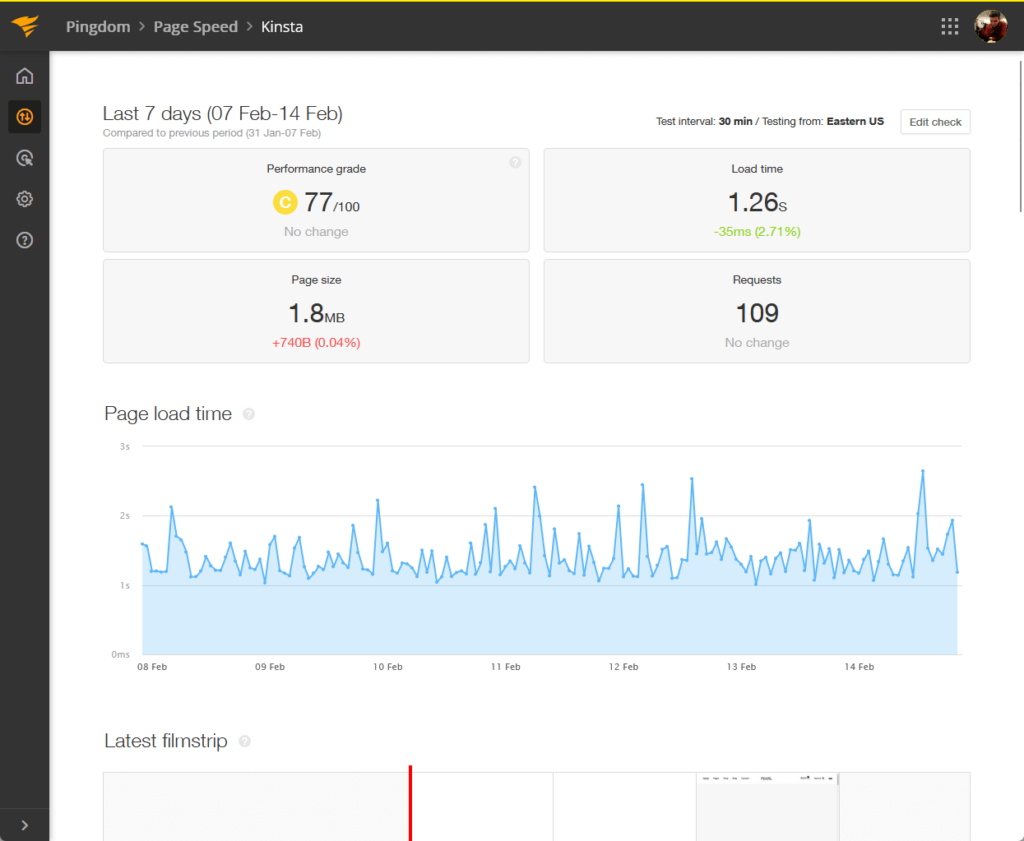
Now let’s compare Kinsta’s performance with other well-known web hosting companies (maximum of 1 year time):
| Web Host | Uptime | Downtime | Performance | Load Time |
| Kinsta | 99.99% | 24 minutes | 77/100 | 1.26 seconds |
| Hostinger | 99.96% | 3 hours | 84/100 | 1.32 seconds |
| Bluehost | 99.92% | 6 hours | 75/100 | 6.72 seconds |
| Siteground | 99.99% | 1 hour | 76/100 | 1.73 seconds |
| Namehero | 99.98% | 34 minutes | 77/100 | 1.62 seconds |
Here are some observations:
- It’s clear from the table that Kinsta stands out, especially with an uptime of 99.99% (which means it has the highest reliability).
- Kinsta also has the shortest downtime which shows their commitment to maintaining high availability for the websites it hosts.
- For the performance, while Kinsta doesn’t have the highest score, it’s still an indication of a strong performance.
- For the 1.26 seconds load time, Kinsta also has the fastest time among the web hosts in the table.
Kinsta presents a compelling option for web hosting with its excellent uptime, minimal downtime, solid performance, and outstanding load times.
These factors are key for anyone looking to host a reliable and efficient website, making Kinsta a strong choice for your hosting needs.
Updates and Maintenance
Can you trust Kinsta with updates and maintenance?
What’s great with Kinsta is that they have a system status page where you can find an update on any disruptions in service to the website, control panel, or hosting.
Here’s the system status page:
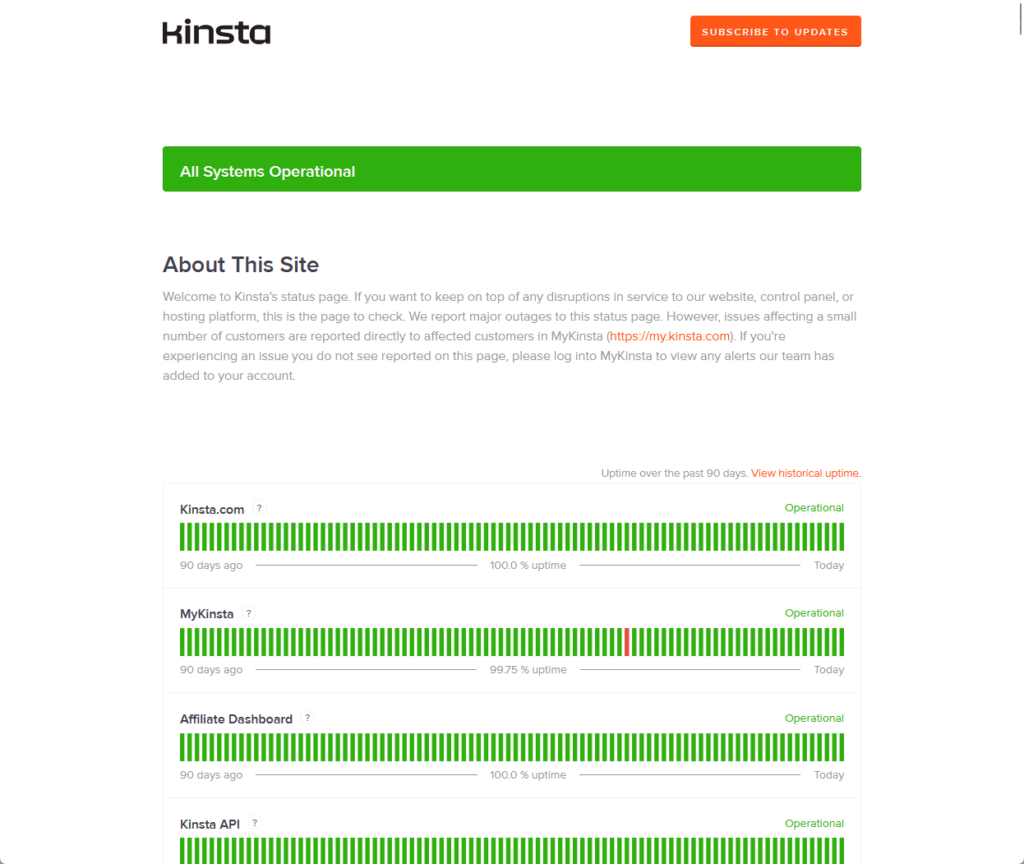
Not counting the disruptions in the site, you can also check the historical uptime over the past 90 days (the button is above the first status box).
I like Kinsta’s transparency regarding disruptions and updates as they list all of them after the status boxes under the past incidents section.
👋 My thoughts here
For reliability, you would agree with me that Kinsta is checking off almost all the green boxes in the list — with flying colors!
It has almost everything you would want:
- Exceptional uptime
- Fast load times
- Negligible downtime
The only problem I see is the performance grade that it got from Pingdom — which is actually more of a website problem in this case.
So yes, I give Kinsta a really big thumbs up. 👍
Support
I would rate Kisnta’s support at 4.5 out of 5.
Here’s why:
- Kinsta's live chat support system stands out for its efficiency and speed, with inquiries being addressed within a minute after interacting with the initial bot.
- While Kinsta offers phone support, it's primarily for sales inquiries rather than technical support.
- The current limitation in language support can pose challenges for non-English speaking users who may struggle to communicate their issues effectively.
Kinsta's support system excels in providing quick and helpful responses through its live chat feature, demonstrating a strong commitment to customer service.
Customer Service
For customer service, you can see the help features at the bottom of the dashboard in the hosting panel (MyKinsta).
It contains links to the following:
- Recent knowledge base articles
- Documentation
- Changelog
- System status
- Kinsta blog
- Learn WordPress
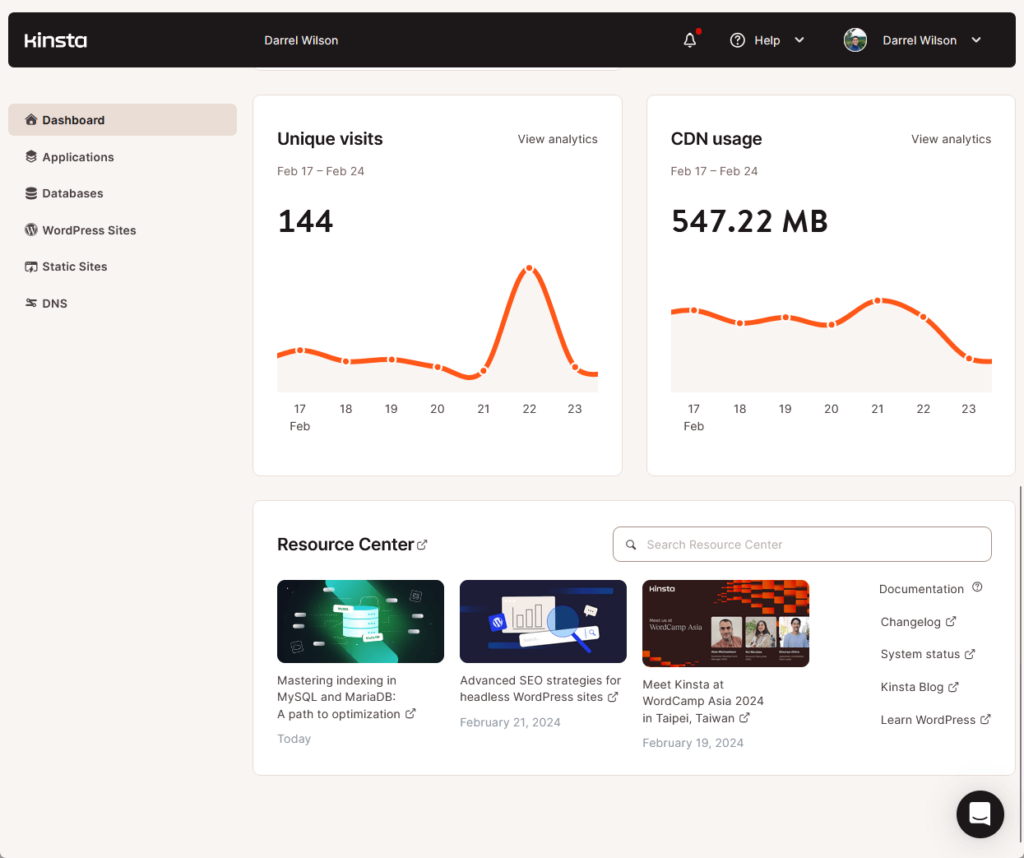
Perhaps the best part of their customer service experience is the live chat — it starts with a bot to get the initial details and will then connect you to a real person.
You can see the chat button on the lower-right corner of the page:
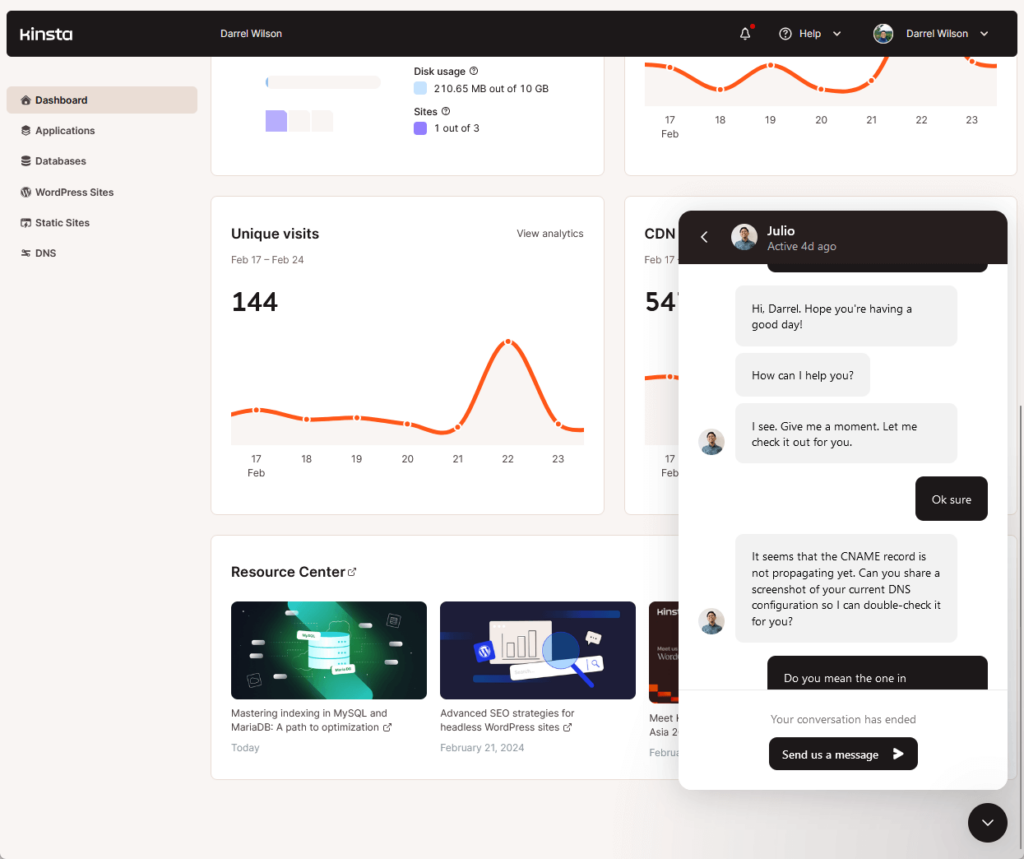
How long did it take them to reply?
Okay, you might not believe this, but they actually replied within a minute of replying to the bot about the problem’s details.
I’m not sure if this is how it usually is, but I’m satisfied with the speed of their live chat.
Besides that, they also offer the following help features:
- Call
- Contact form
- Community
Yes, Kinsta is one of those so few companies that still display their actual phone number (though in this case, the number is for the sales department).
The community feature is also good:
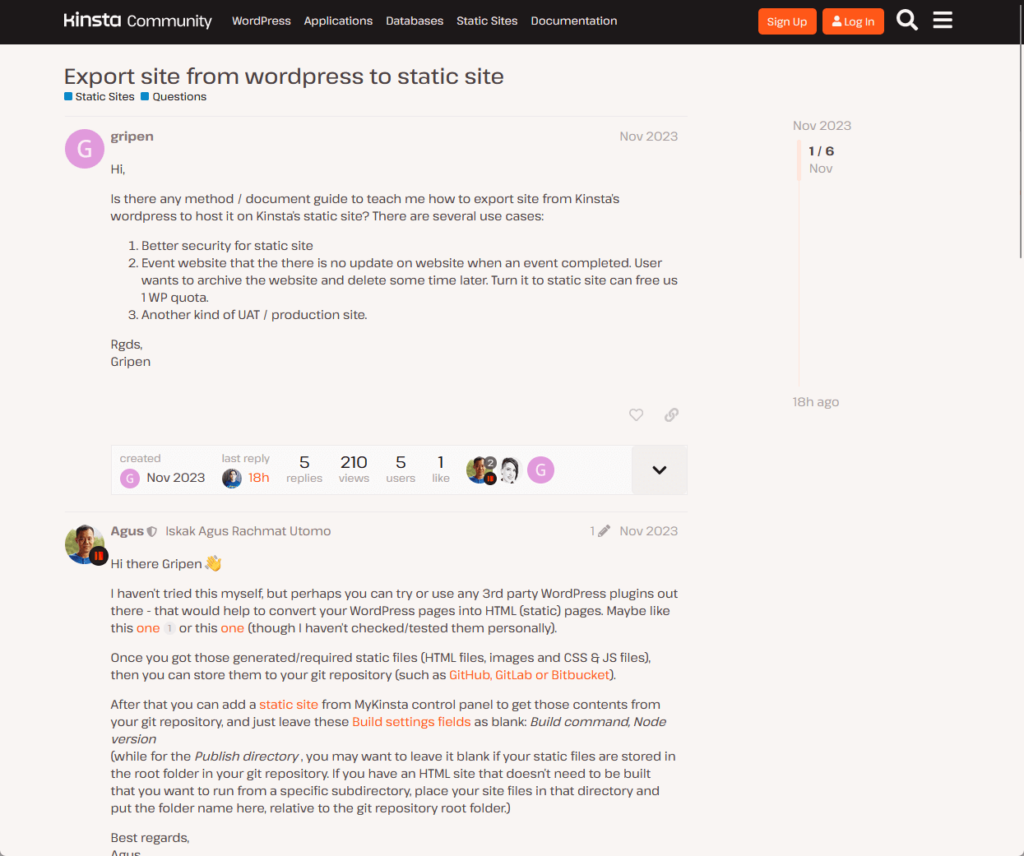
I checked different posts and so far, all of them have replies.
The only ones that were unreplied were those announcement posts from Kinsta’s staff — usually about new features and recommendations.
Documentation
Kinsta has both a documentation and knowledge base.
Starting with the documentation:
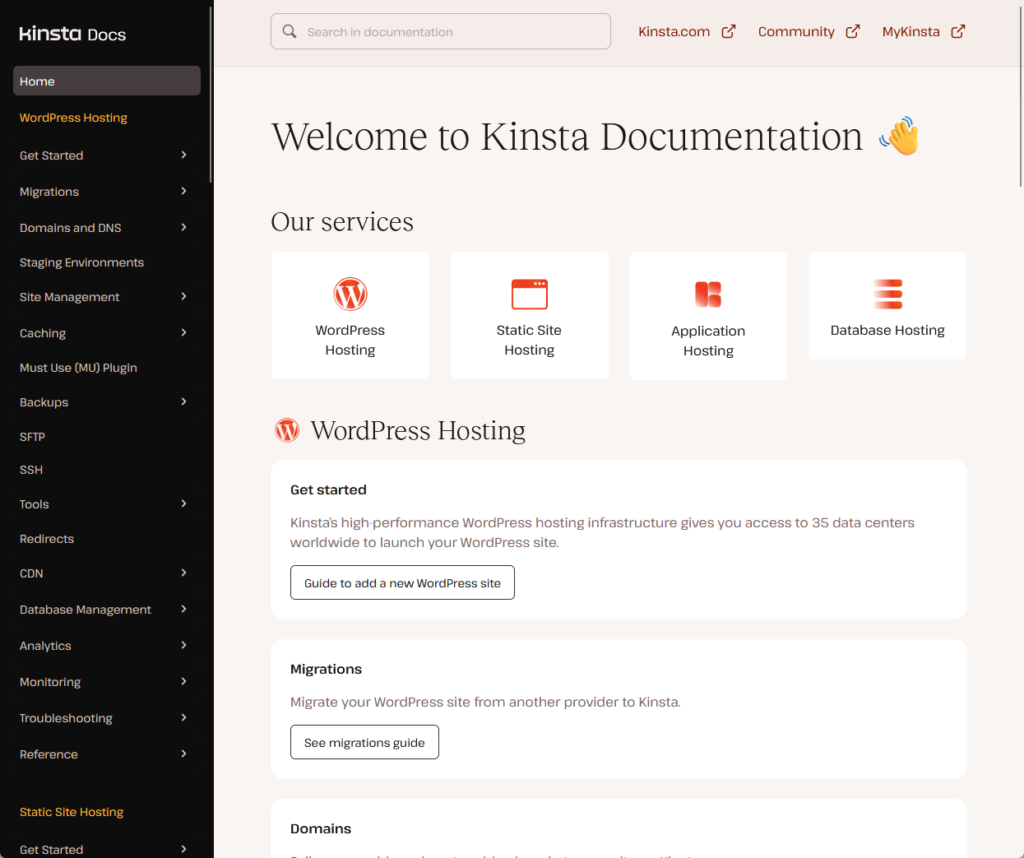
All the pages are organized, and you can see the categories on the left-hand panel (which if you open it, the individual posts are also listed there).
For the quality, all the documentation pages are written well, and complete with annotated images and info boxes.
Here’s an example:
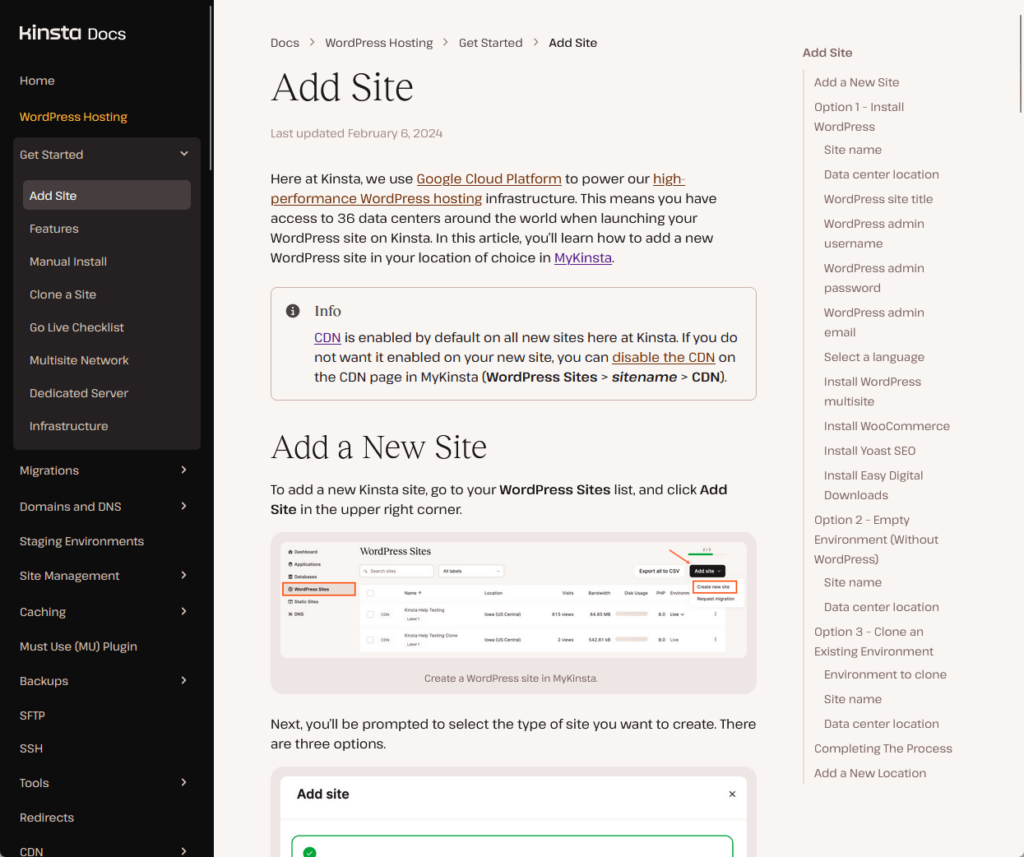
On the other hand, the knowledge base looks like this:
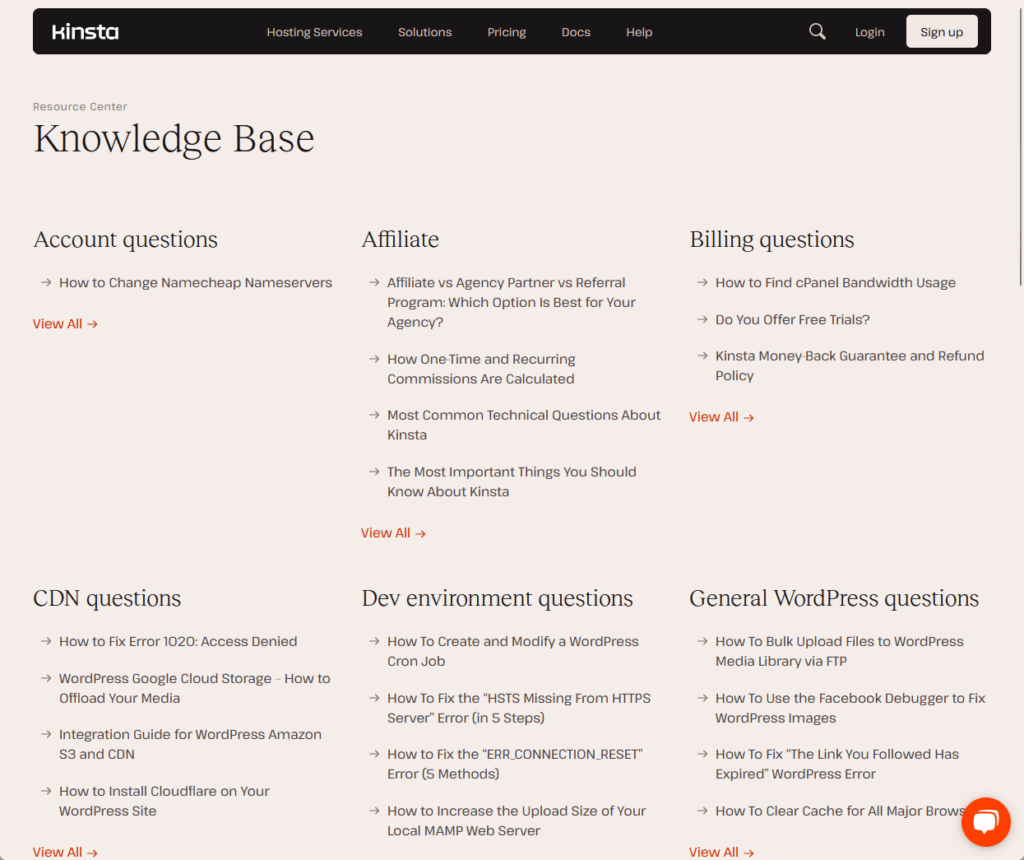
You can see that the KB topics are also grouped according to themes or categories, and most are titled in a question format.
The individual posts look quite good, different from the documentation in the way that KB posts look more like blog posts.
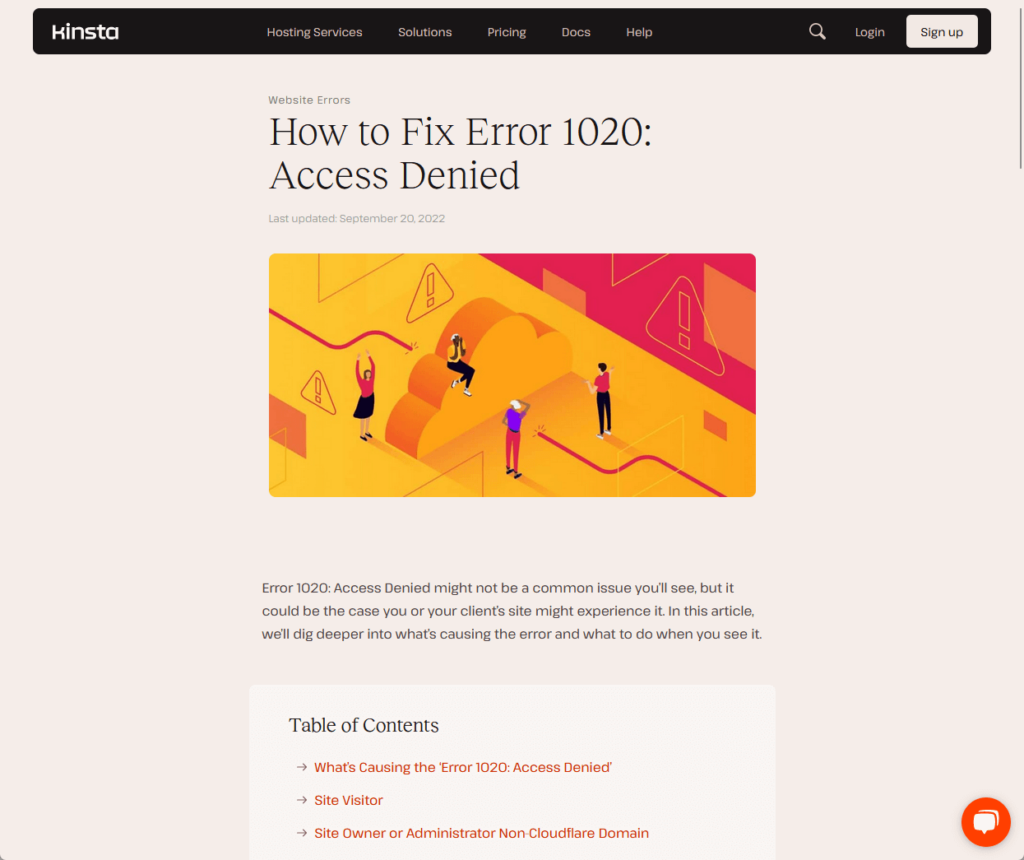
It’s also written well, has a nice table of contents box, and annotated images.
Kinsta did a good job here on their documentation and knowledge base.
👋 My thoughts here
All in all, Kinsta has excellent support options: documentation, a live chat feature, knowledge base — they even showed their sales’ contact number!
Unfortunately, I have to mention two areas where they need to improve here:
- Phone support
- Support for non-English speakers
The problem with their phone support is that they don’t provide support for technical issues — which are more important.
Some users may prefer the option to speak with a support representative directly over the phone for complex or urgent matters.
For the second one, the good news here is that Kinsta is already working on expanding its support in various languages.
Pricing
I would rate Kinsta's pricing a 3.8 out of 5.
Here’s why:
- Kinsta's managed WordPress hosting packages, although priced at a premium, offer a comprehensive set of features that justify the cost for many users.
- The starting price of $35/month for the starter plan places Kinsta at a higher entry point compared to many other hosting services.
- The pricing for web applications and databases introduces a complexity that might be challenging for users not familiar with these services.
Kinsta's pricing reflects its positioning as a premium managed hosting provider, offering a range of advanced features and services to businesses, professional bloggers, and web developers.
1. WordPress Sites
Kinsta divided their services according to what’s to be hosted — websites, web applications, or databases.
The first is the one for websites — Kinsta’s managed WordPress hosting, and it comes with three basic categories:
- Starter (from $35/month)
- Business (from $115/month)
- Enterprise (from $675/month)
The prices are then further subdivided — like the starter plan having an upgraded “pro” plan, and all these variations are available at monthly or yearly prices.
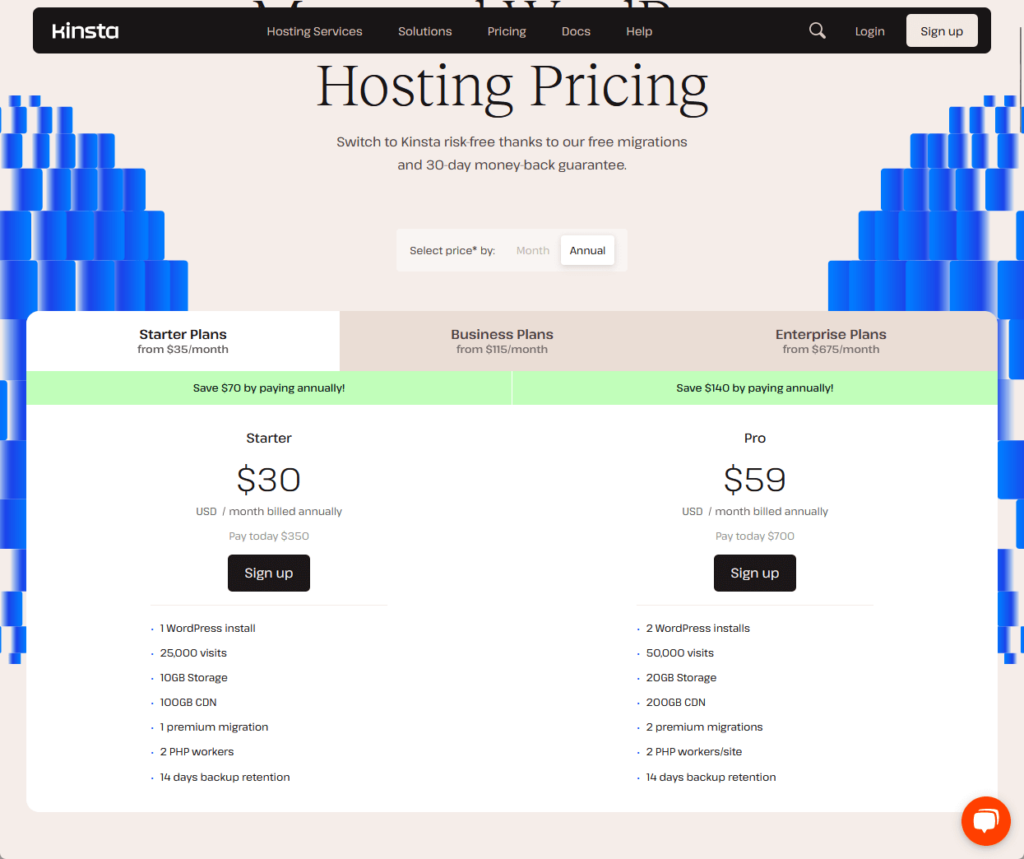
The differences between the plans are important and affect the following:
- WordPress installation
- Number of visits
- Storage space
- CDN allocation
- Premium migration
- PHP workers
The starter plan starts at only 1 WordPress installation, 25,000 visits, 10 GB storage, 100 GB CDN, 1 premium migration, and 2 PHP workers (the pro plan doubles these numbers).
The business plan starts with 5 installations, 100,000 visits, 30 GB storage, 400 GB CDN, 3 premium migrations, and 4 PHP workers.
The enterprise plan starts at 60+ installations, 1+ million visits, 100+ GB storage, 2 TB+ CDN, 5+ premium migrations, and 8+ PHP workers per site.
2. Web Applications
The application hosting pricing might be a little hard to understand if you’re not into this (I don’t understand it too much as well).
But anyhow, there are five main pricing schemes:
- Application pods
- Build machines
- Bandwidth pricing
- Optional persistent storage
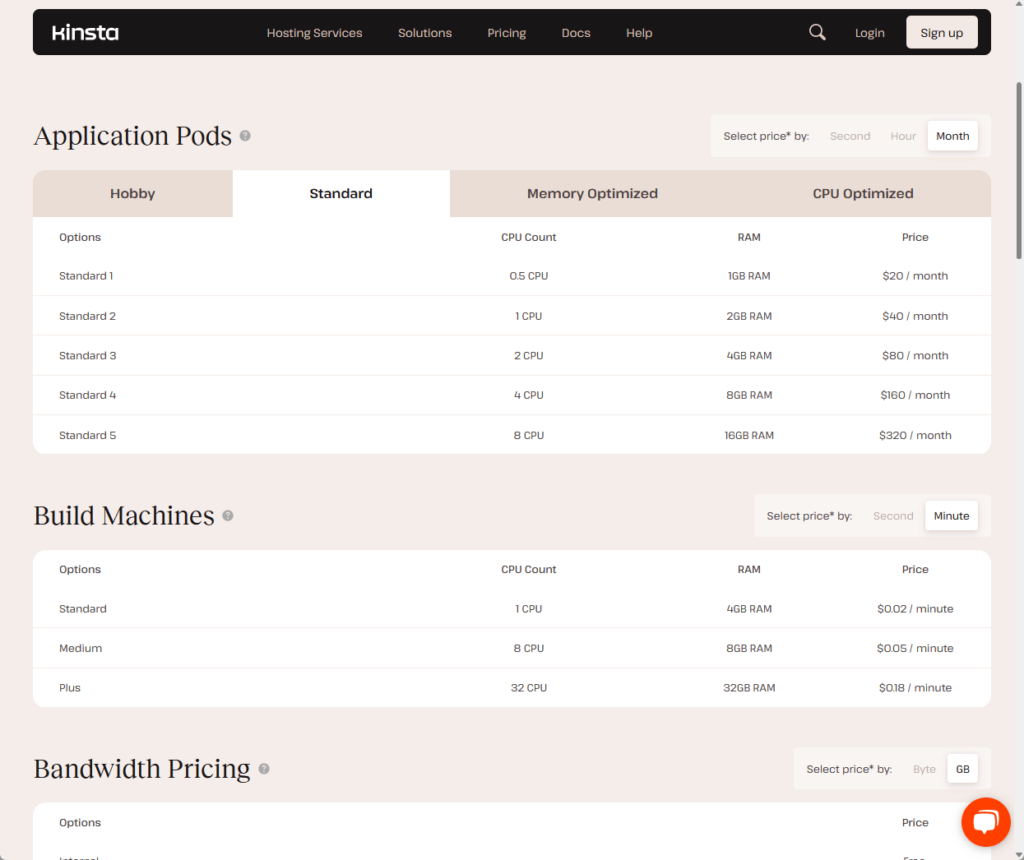
The pricing for application pods is further divided into four options, with the cheapest plan costing $7/month for 0.3 CPU and 0.3 GB RAM.
The prices for the build machines category are available in seconds or minutes and start at $0.02/minute for 1 CPU and 4 GB RAM.
Bandwidth pricing, from its name, is available per byte or GB, and the external option costs $0.14/GB.
The optional persistent storage is for storing files that need to be saved after the redeployment — it starts from $3/month for 10 GB.
3. Databases
The database option is easier to understand as it’s only priced by pack (available by second, hour, or month).
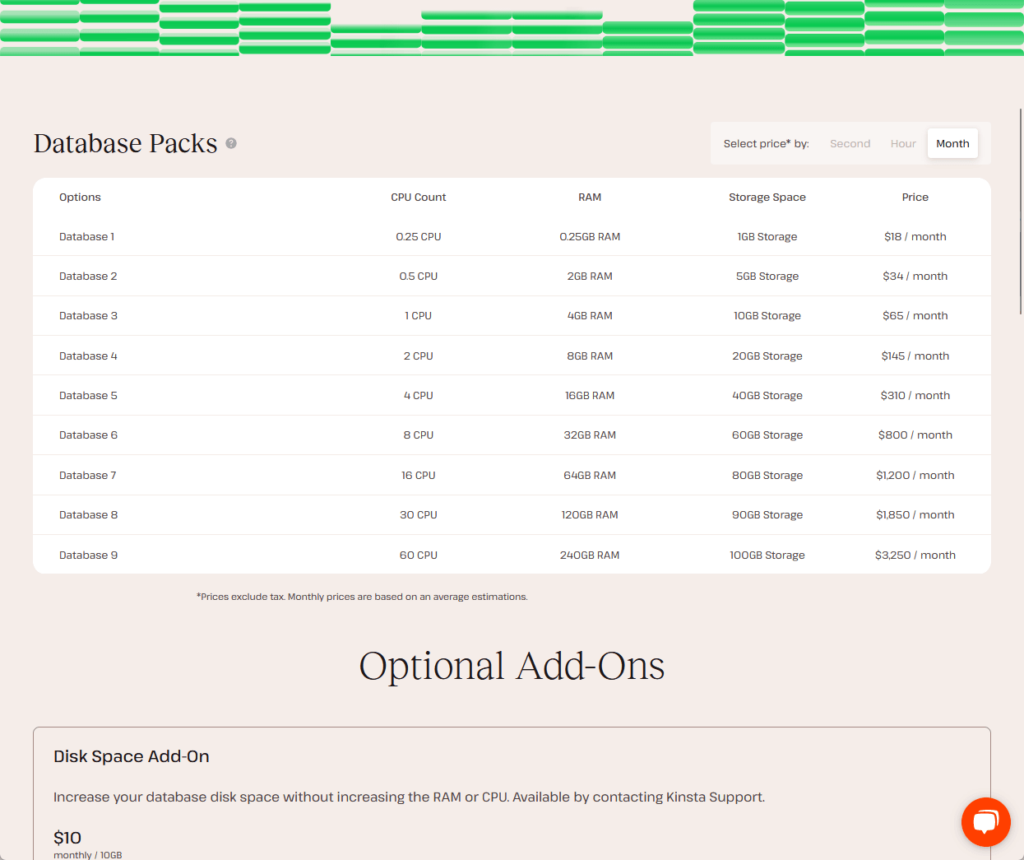
The first pack is database 1 and it comes with 0.25 CPU, 0.25 GB RAM, 1 GB storage space, and costs $18/month.
The succeeding plans mainly double the figure from the first option — except for the storage space where the next option has 5 GB storage only.
Money Back Guarantee/Refund
Kinsta offers a 30-day money-back guarantee on all of its hosting plans, aligning with the best practices in the web hosting industry.
This guarantee allows you to test their services risk-free, ensuring that they meet your expectations and requirements.
Here’s the policy:
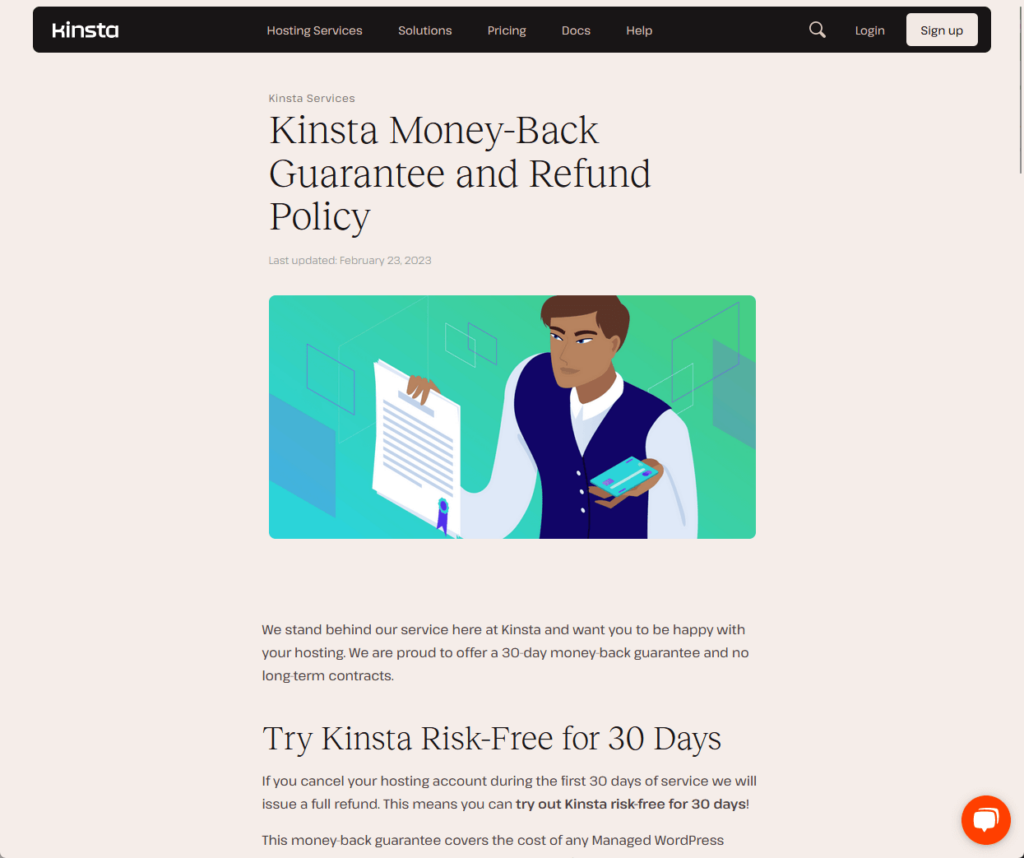
If you want to request a refund, all you have to do is cancel your Kinsta account.
Kinsta will then automatically calculate the final bill and will leave you with either outstanding charges or refunds.
If nothing happens, you can always reach out to their customer service and ask about your refund (or whether there’s any problem).
👋 My thoughts here
From what I gathered, Kinsta seems to be one of the best hosting service providers — although yes, it’s definitely on the more expensive side.
Here are my comments:
- Add-on costs
- Pricing transparency for custom plans
Kinsta doesn’t tell you much about this — but it’s possible that you will incur additional costs from hidden charges.
On the bright side, their pro-rated refunds mean Kinsta you will get refunds for any unused time on hosting payments.
Final Thoughts
It’s clear that Kinsta offers a robust, user-friendly experience tailored to both newcomers and seasoned webmasters alike.
But remember that while Kinsta provides impressive tools and services, the true potential of your site lies in how you utilize these resources.
Regularly review your site's analytics, take advantage of Kinsta's advanced features, and never hesitate to reach out to their responsive customer support for guidance.
Wrapping up, it's important to consider the tools that will amplify your website's impact.
This is where Elementor template kits come into the spotlight, offering an unparalleled ease of design and customization.
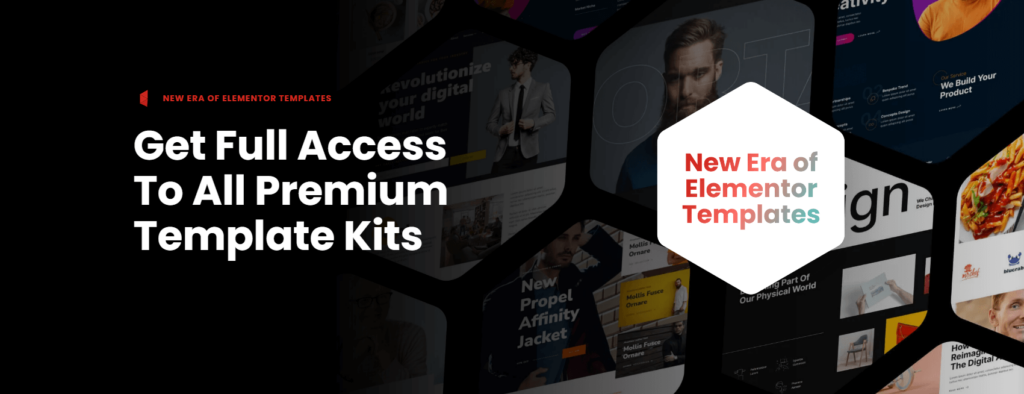
Darrel Wilson has an incredible offer that you simply can't ignore:
- Get lifetime access to all premium template kits designed for Elementor
- Complete with 2 years of dedicated support
- Only for $99 — that's already for the lifetime access
Embrace the convenience and creativity of Darrel Wilson's offer.
By integrating these Elementor template kits into your toolkit, you're not just enhancing your design capabilities:
You're setting a new standard for excellence in web design.