
Ease of Use
My rating here is 4.0 out of 5.
Here’s why:
- The backup and restore interface is highly intuitive, which makes it easy for users to create backups or restore backups with minimal effort.
- Users need to uninstall the free version before installing the premium version and log in to their UpdraftPlus account.
- Its straightforward UI provides accessible control for both new and experienced users to help with complex processes in just a few clicks.
The setup process for the premium version could be more user-friendly.
But overall, the plugin’s ease of use is well above average, making it an excellent choice for managing WordPress backups.
Initial Setup
UpdraftPlus has a free and a premium version.
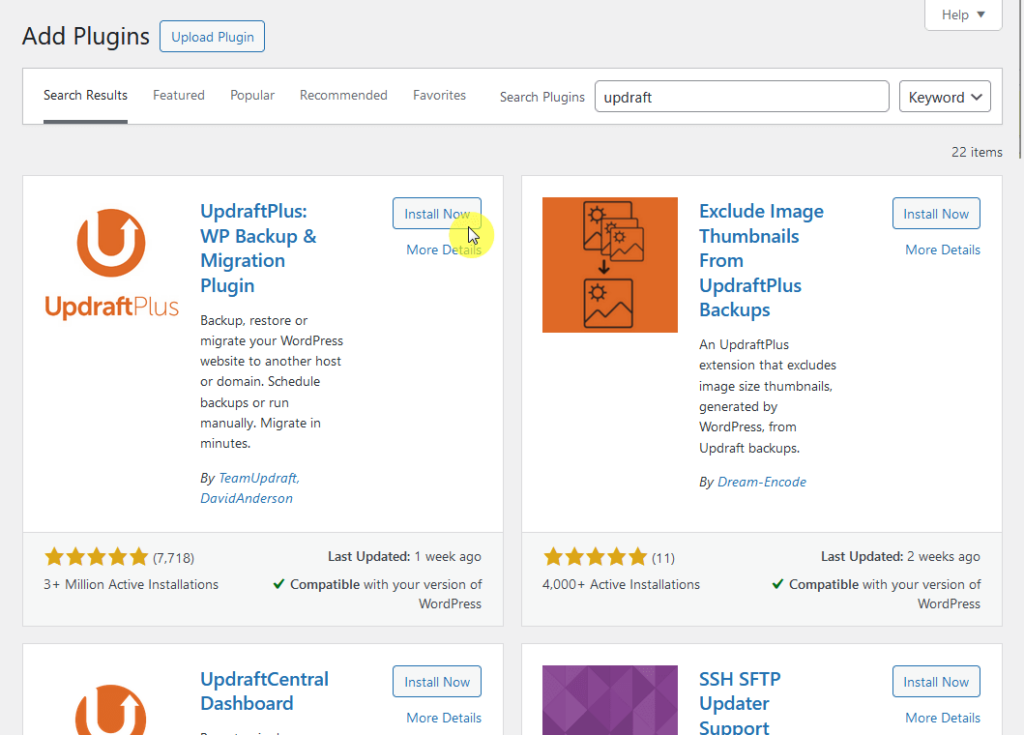
For the free version, you can search for it in the repository by navigating to plugins > add new, then install and activate the plugin:
But if you decide to go with the premium version of UpdraftPlus, you would need to go to the UpdraftPlus website and download the plugin.
Then, upload the plugin to WordPress by going to plugins > add new, then select the “upload plugin” option at the top of the page.
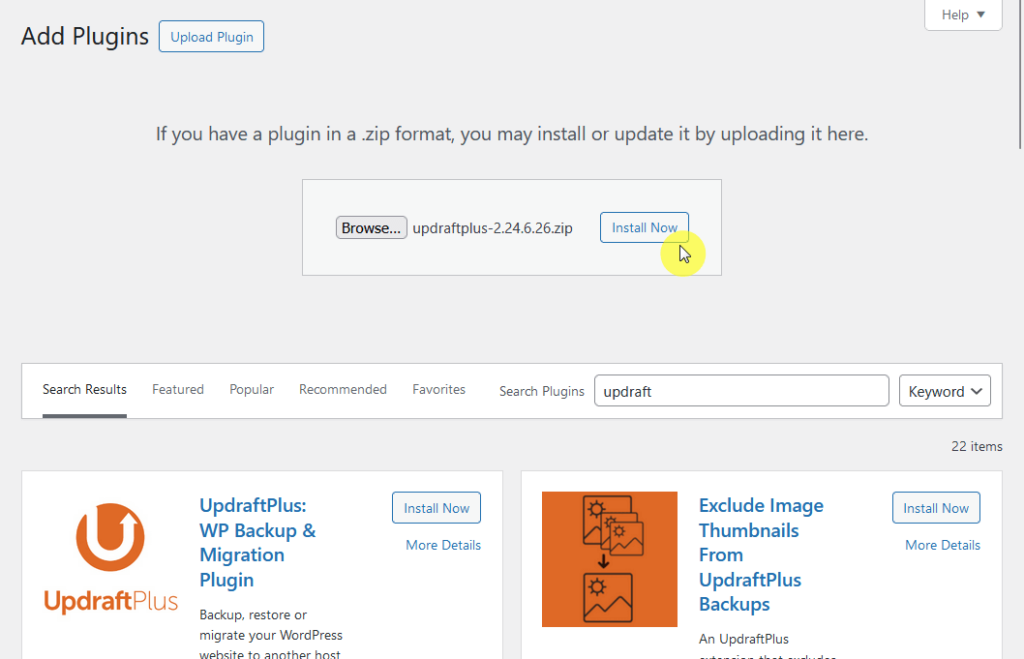
Please note that if you have the free version installed beforehand, you would need to uninstall it first (or when prompted, replace the current plugin with what’s being installed).
Anyway, once the plugin is installed and activated, you need to go to the premium/extensions tab of the plugin and then log in with your UpdraftPlus account.
You need to do this to be able to activate the premium addons. 🙂
User Interface
Once you click on the UpdraftPlus option in the WordPress dashboard, you will immediately land in the backup/restore tab, which also functions like a dashboard.
It looks like this:
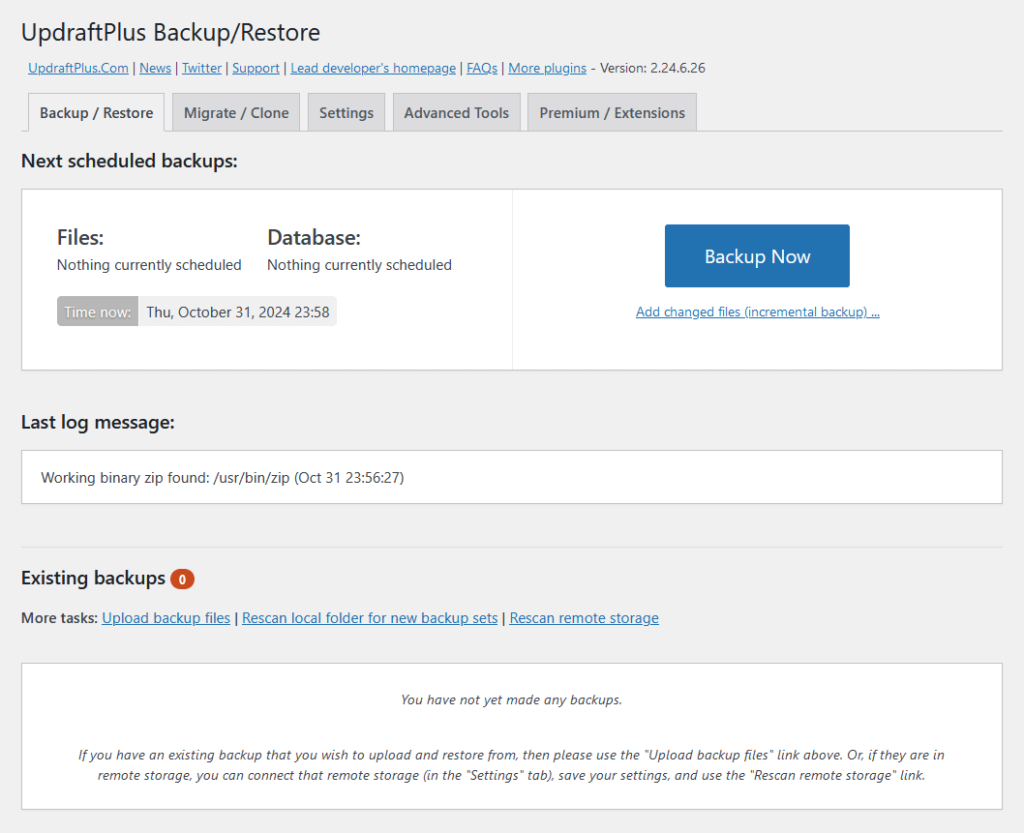
Basically, this is the central control for creating and managing backups.
It includes buttons to back up your site manually or restore from previous backups, and each backup can be saved locally or to a cloud storage service if configured.
There are four more tabs besides this:
- Migrate/clone
- Settings
- Advanced tools
- Premium/extensions
We will go through these tabs later, but for now, let me show you the migrate/clone tab:
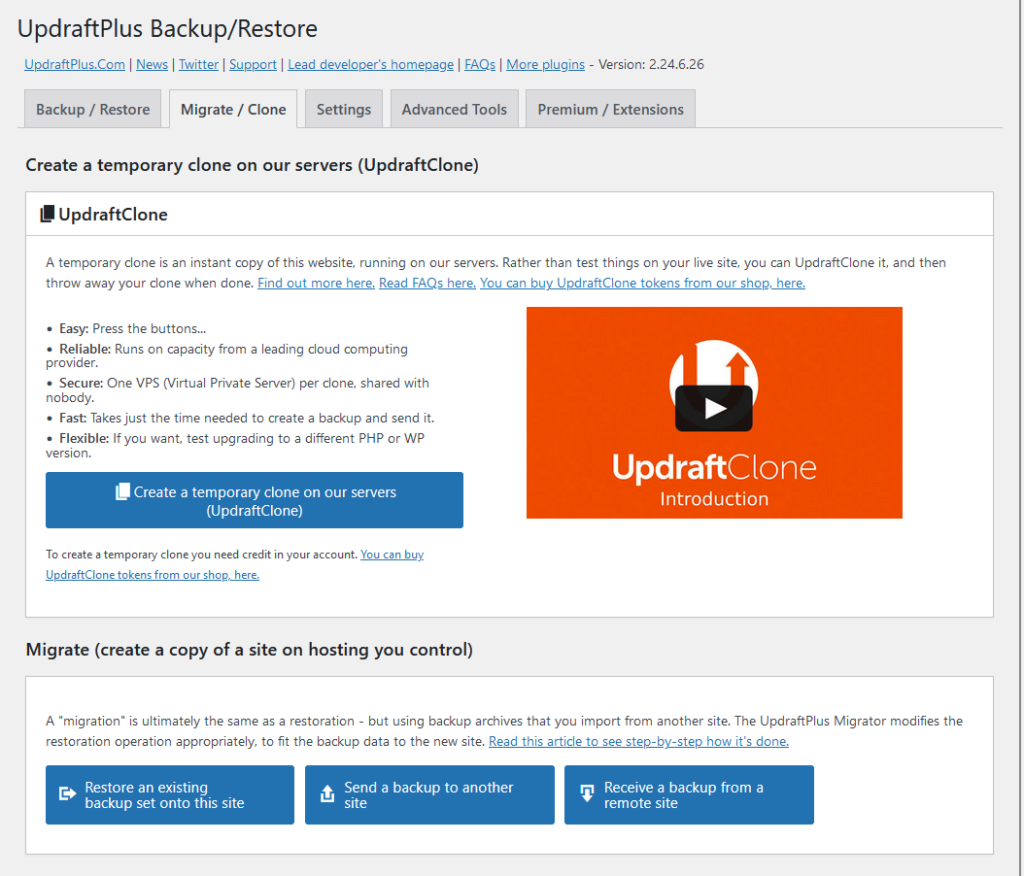
The migrate and clone section makes moving or copying websites easier, even for complex setups.
If you’re a developer or a site owner who frequently works with test environments or needs to move their sites to new servers or domains without downtime, you will find this super helpful.
👋 My thoughts here
In total, I feel that the setup and user interface are doing great.
Here are my thoughts here:
- The settings are straightforward, and you can easily understand what they’re supposed to do.
- Although they recommend “uninstalling” the free version for the premium, it can automatically detect the free version.
- What this means is that you can simply replace the free version with the premium one during installation, which is quite nice.
Other plugins would simply return an error message or else show a message that requires you to actually uninstall its free version.
So I would say that UpdraftPlus has nailed that part. 🙂
It’s clear that reliable hosting plays a crucial role in maximizing your site's performance and security.
Hostinger, known for its competitive pricing and dependable service, complements your backup strategy perfectly.

Discover the Hostinger advantage for your WordPress site:
- Enjoy a 99.9% uptime guarantee
- Affordable pricing at just $2.49/month (use the code darrel10 to get a discount)
- Global performance and reach with Hostinger's optimized hosting platform
Whether you’re managing backups or running an ecommerce site, Hostinger offers a hosting solution that fits your needs.
Best Features
I would rate the features a 4.2 out of 5.
Here’s why:
- The scheduled backups feature provides great flexibility and control, allowing users to set backup frequency, file/database settings, and retention limits.
- Some essential tools like incremental backups and site cloning are only available at an additional cost.
- The multiple storage options are extensive and versatile, allowing backups on platforms like Google Drive, Amazon S3, Dropbox, and more.
While premium features add significant value, their additional cost might not be ideal for all users.
UpdraftPlus’s best features combine advanced functionality and convenience, giving it a high rating for versatility and dependability.
Here are some notable features of UpdraftPlus:
1. Scheduled Backups
Scheduled backups in UpdraftPlus allow you to automate your website's backup process so your site data is consistently backed up without requiring manual action.
This feature is important for keeping your content safe from unexpected issues like site crashes, updates, or hacking attempts.
You can find it in the settings tab:
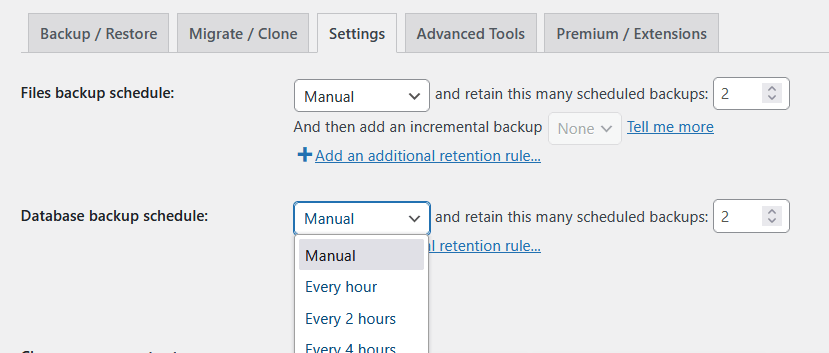
What’s nice here is that you can:
- Choose your backup frequency
- Configure file and database backups separately
- Set retention limits
Literally, you can control how many backups to retain, so your storage doesn’t fill up with unnecessary WordPress files. 🙂
You can then customize the frequency of backups based on your site’s update cycle.
For example, high-traffic sites that change frequently can be backed up daily, while static sites might only need monthly backups.
2. Multiple Storage Options
UpdraftPlus provides a wide variety of storage options that will allow you to securely store your website backups on multiple external platforms.
What’s nice here is that you have access to your backup files even if one storage solution encounters issues (think extra layer of reliability and peace of mind).
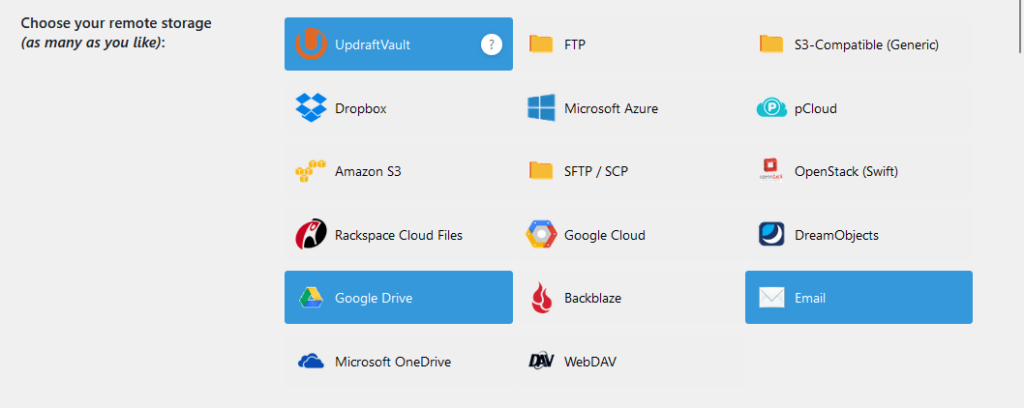
Popular storage options:
- Google Drive: A popular option with ample space for basic backups, easily accessible from any Google account.
- Dropbox: Offers seamless integration and allows you to organize backups in a dedicated folder.
- Amazon S3: Ideal for users needing scalable storage solutions, with customizable options based on data volume.
- OneDrive: Microsoft’s cloud storage service, offering convenient access for users in the Microsoft ecosystem.
- FTP/SFTP: For those who prefer to store backups on a private server, FTP and SFTP provide direct server connections.
- Updraft Vault: UpdraftPlus’s own dedicated storage, available with premium plans, featuring easy integration and support.
Having diverse storage choices means you can distribute backups across different locations to reduce the risk of data loss.
For example, you could store daily backups on Google Drive and weekly backups on Amazon S3. 🙂
3. Premium Features
UpdraftPlus has many premium features, one of which is site migrations and cloning, which will let you quickly move or duplicate your WordPress site to a new location.
Whether you’re switching to a new hosting provider or setting up a staging environment, this simplifies the process and reduces the risk of downtime or data loss.
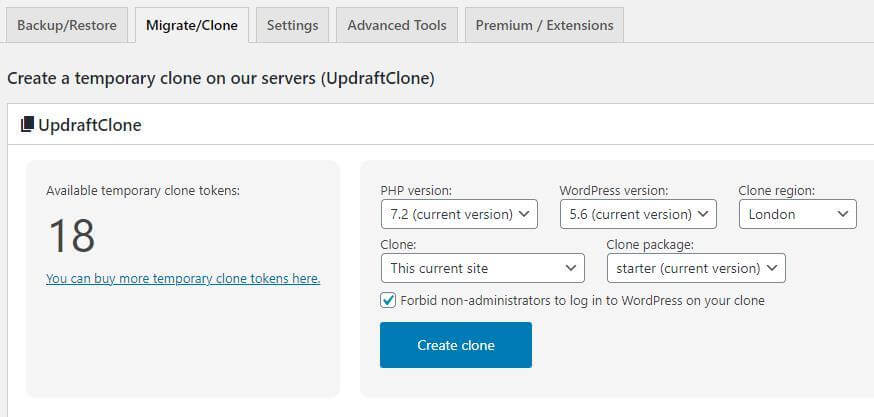
For staging or testing environments, you can clone your site to an UpdraftPlus-hosted temporary server, letting you trial updates or changes without affecting the live site.
Other premium features you might like include:
- Incremental backups (back up only the recent changes instead of the entire site)
- Database encryption (adding an extra layer of security)
- Multi-site support (manage backups across all sites in the network)
All these features are particularly helpful for developers, agencies, or site owners managing multiple sites or test environments.
👋 My thoughts here
If you don’t know yet, UpdraftPlus has some of the best features out there.
Here are my thoughts:
- When scheduling backups, not only do you have an option for the schedule, but you can even add retention rules (nice for storage management).
- Their migrate and clone feature is nice to have, especially since you only need to press a button to make that happen.
- Having more add-ons in addition to the premium tier might be a little annoying if you thought a (cloud) feature was part of what you would be paying.
Of course, it’s understandable since these features use cloud resources.
But if you’re the type who always assumes that all features are available in the highest tier, you might get disappointed really quickly. 😅
Reliability
My rating here is 4.4 out of 5.
Here’s why:
- The performance is exceptional, especially with low response times in both frontend (0.045 seconds) and backend (0.057 seconds).
- Although regular updates are beneficial, users occasionally experience minor compatibility issues immediately following updates.
- The frequency of updates (every 1–2 months) is ideal for staying compatible with new WordPress versions and improving security.
While updates are frequent, the benefits of keeping the plugin up-to-date outweigh the minor inconveniences of occasional compatibility issues.
Overall, its reliability and responsiveness make it a strong choice for dependable backup management.
Performance
Upon testing UpdraftPlus with my favorite profiling plugin, Code Profiler, here’s what I got:
- Website frontend: 0.045 seconds
- Admin backend: 0.057 seconds
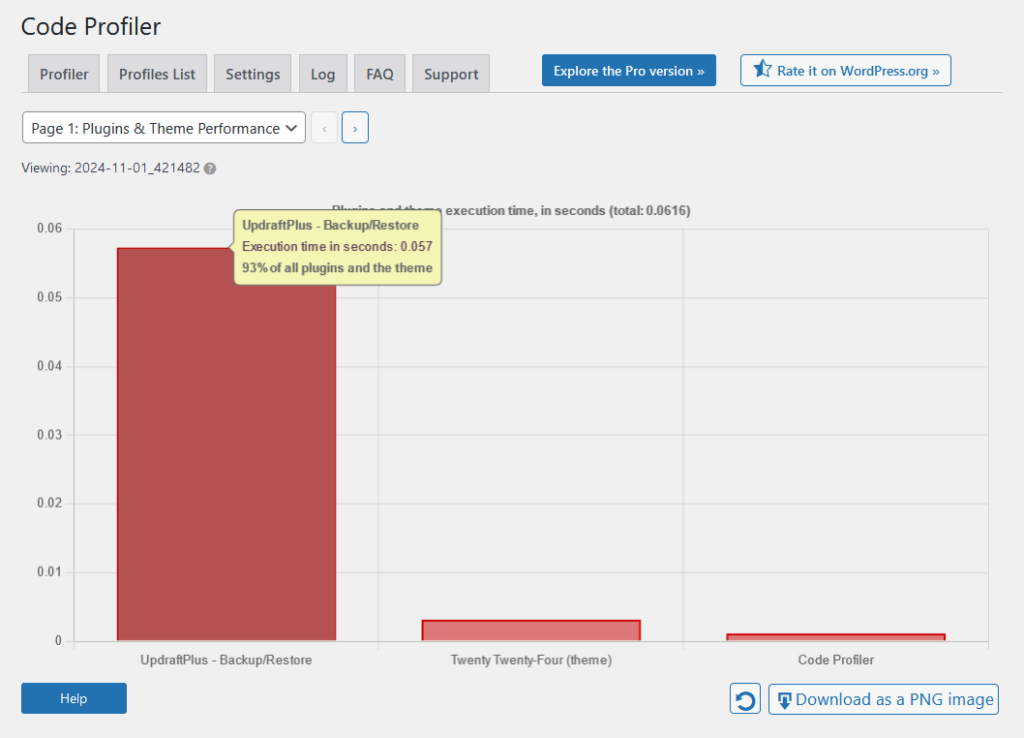
Naturally, this wouldn’t be complete without comparison with its competitors:
| Feature | UpdraftPlus | Duplicator | WPvivid (Free) |
| Website Frontend | 0.045 seconds | 0.077 seconds | 0.04 seconds |
| Admin Backend | 0.057 seconds | 0.092 seconds | 0.102 seconds |
As you can observe, it seems that UpdraftPlus is highly optimized for website visitors with its faster frontend load time.
It has the best response time in the backend, which is good news for site administrators who need a responsive dashboard.
All three plugins perform within milliseconds on both the frontend and backend, but UpdraftPlus’s low times demonstrate a lighter impact on server resources.
Updates and Maintenance
UpdraftPlus is regularly maintained with frequent updates to match the latest WordPress versions, fix bugs, improve features, and address security concerns.
They maintain a detailed changelog that is publicly accessible:
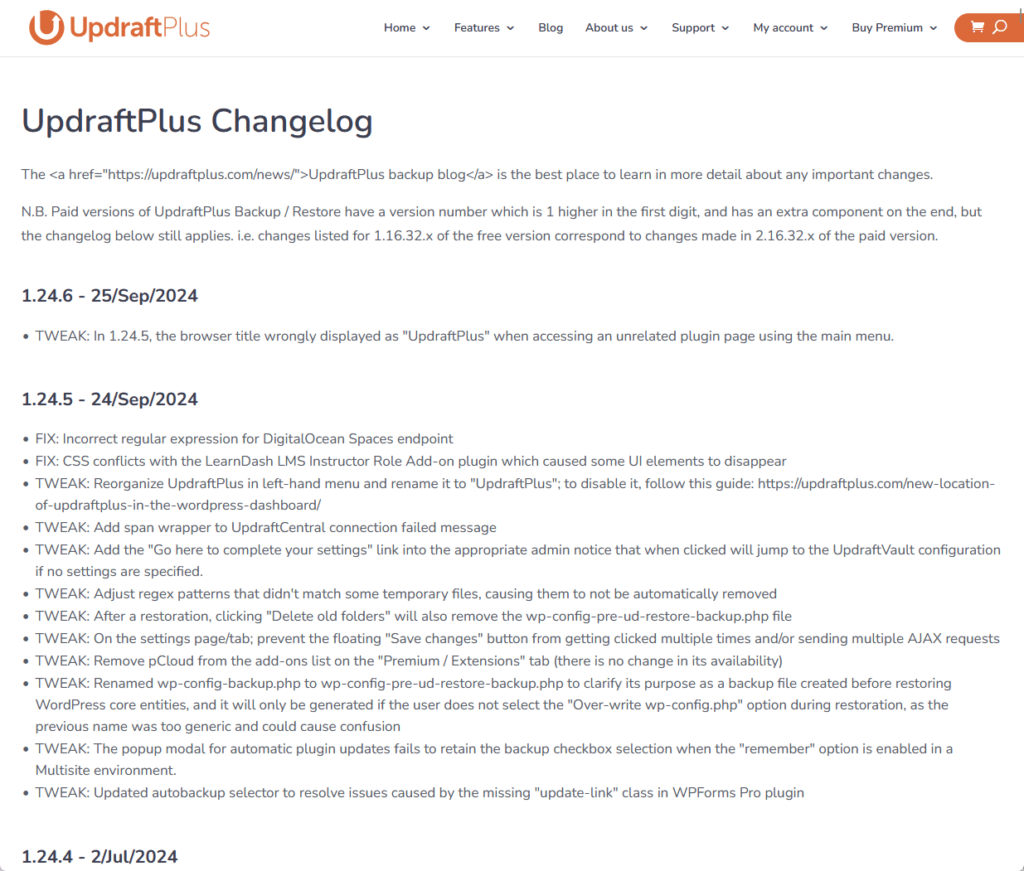
Each entry in the changelog includes the following:
- Release date
- Version number
- A list of changes
These updates often cover enhancements, bug fixes, compatibility adjustments, and, occasionally, new feature additions.
UpdraftPlus releases updates approximately every 1–2 months, though critical updates for security or compatibility may be rolled out as needed.
Both the free and premium versions are updated regularly, though premium users might see some additional updates with exclusive new features and advanced improvements.
👋 My thoughts here
UpdraftPlus certainly seems fast! 🙂
Here are my thoughts here:
- The performance, especially in the backend, is exceptional.
- They regularly update both their free and premium plugins, which is in our best interest to protect the sites that we manage.
- Their changelog, although detailed, has a bit of an outdated feel to it (but I guess their site overall has that feel).
Anyway, reliability-wise, UpdraftPlus is great and surely won’t affect the site speed negatively.
Support
I would rate its support a 3.8 out of 5.
Here’s why:
- For premium users, the ticket-based support is responsive and efficient, allowing users to submit detailed issues and receive prompt help directly from the support team
- While forum support can be useful, it may lack the immediacy and thoroughness needed for resolving complex issues.
- There’s no formal knowledge base, which might make finding specific solutions a bit harder, though the blog and FAQ pages do compensate fairly well.
Free users have some helpful resources, but they might find the support options limited.
They provide valuable support resources and documentation that make it a dependable choice, especially for those opting for the premium experience.
Customer Service
UpdraftPlus offers a range of customer support options to help users troubleshoot issues, learn how to use features, and get the most out of the plugin.
If you’re coming from the plugin, you can find a support link in the premium/extensions tab:
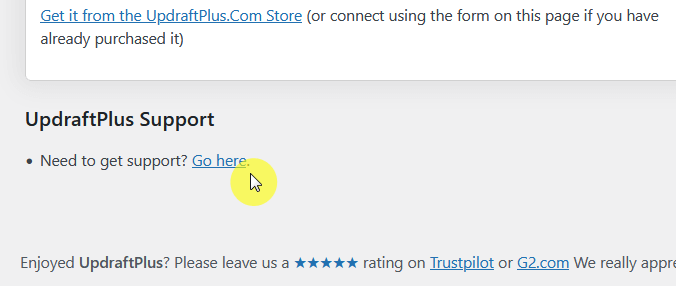
Anyway, that link will get you to the support page on their website.
They outlined four modes of support:
- FAQ
- Support forums
- YouTube
- Support ticket (premium)
They encourage free users to get help via the WordPress forums and they would point premium users to the premium support.
But at least, you can find answers there through what others have posted. 🙂
Premium users gain access to direct, ticket-based support, where you have to fill out a form:
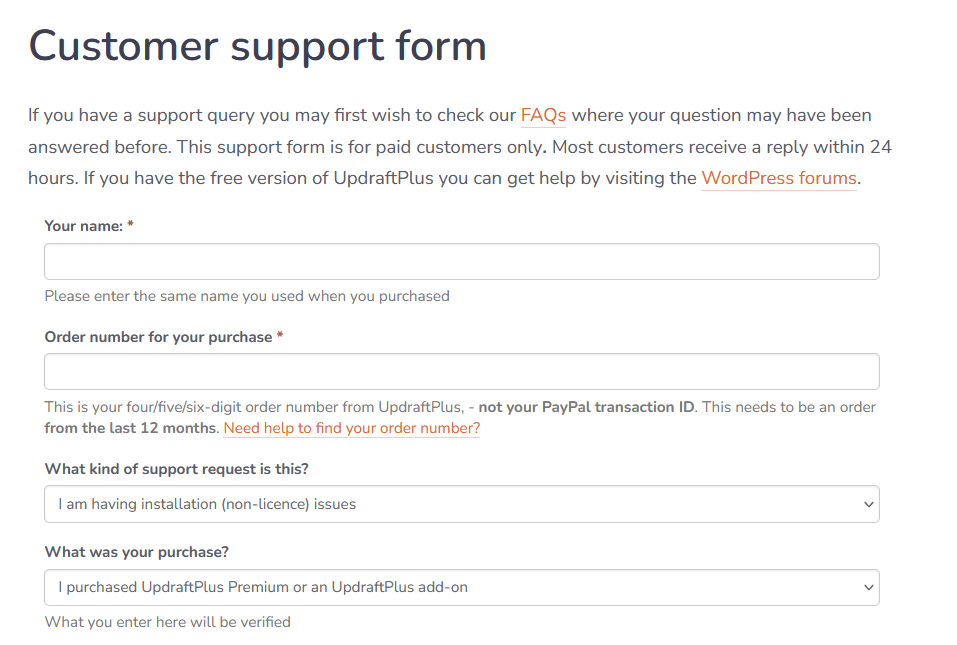
This allows users to submit detailed issues and receive email responses from the support team, generally with a faster response time compared to free forum support.
With these options, a support ticket stands out as the best choice for premium users, delivering fast assistance for immediate help.
For other users, the knowledge base and forums offer comprehensive support resources for a wide range of topics.
Knowledge Base
Although UpdraftPlus doesn’t have an official knowledge base, they have their blog and FAQ pages that answered all my questions.
For example, when I wanted to understand more about their “incremental backups”, they had a blog post dedicated to it.
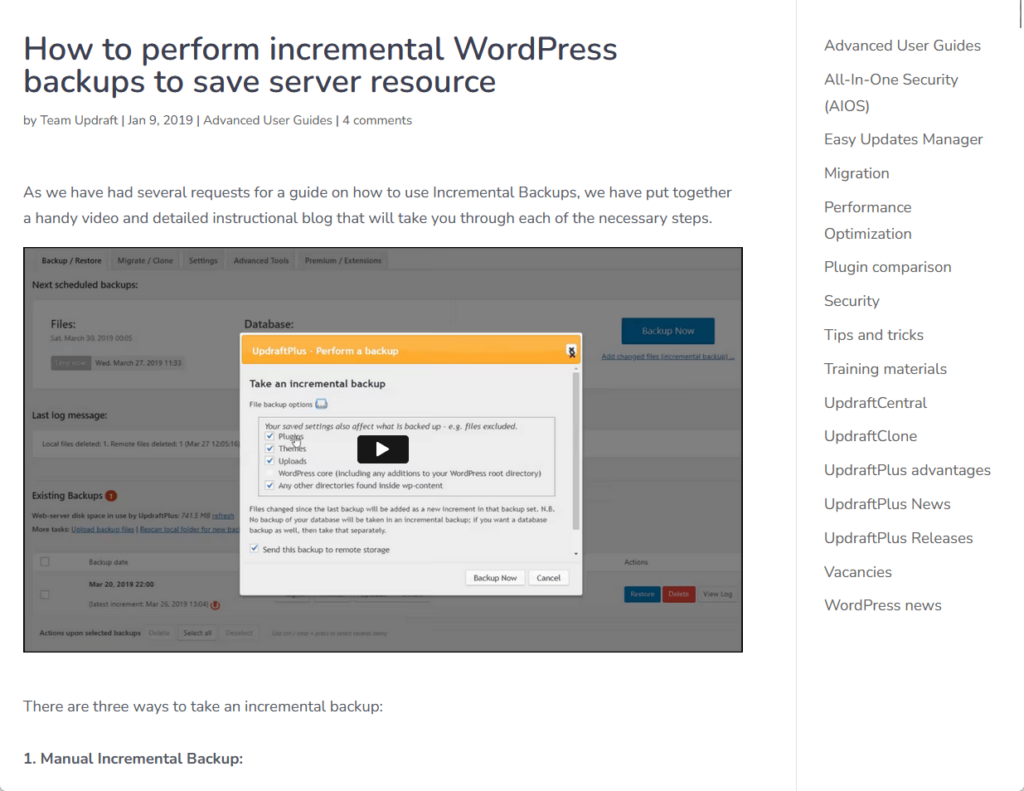
Most of the pages that I have read from them all contained nice images and even some videos that gave me a walk through on what I needed to know.
Not all of their posts have images though, and I feel it’s valid since these topics don’t really need images (like what formats backups are in).
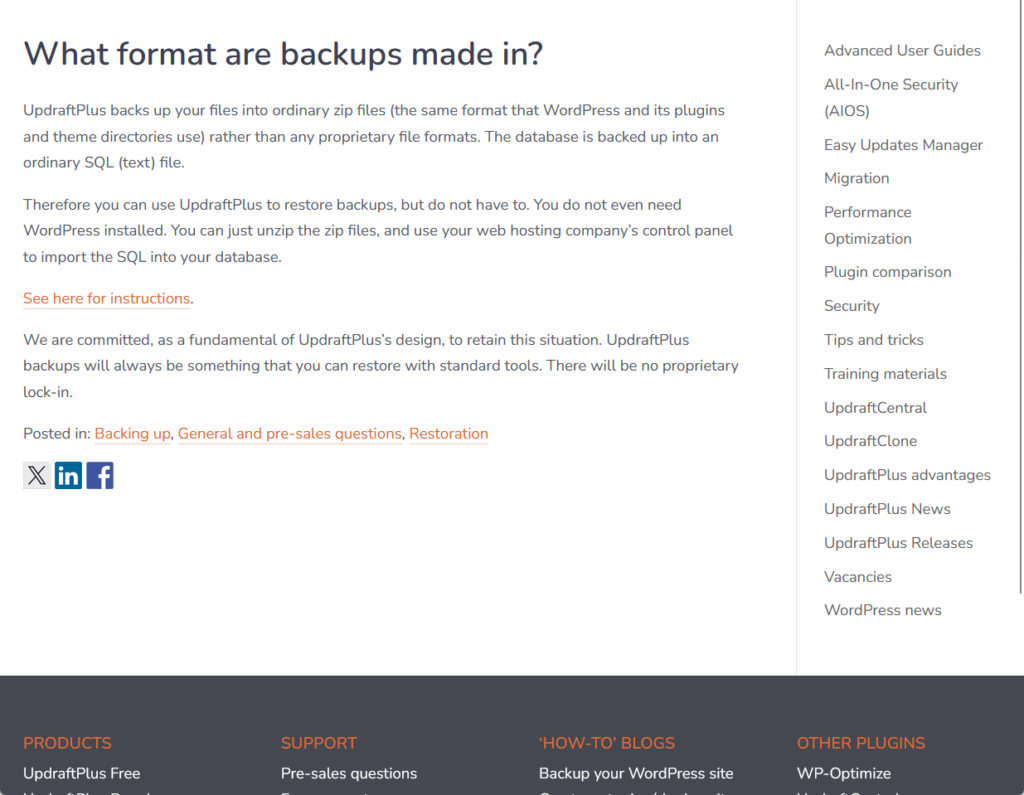
The best part is that whatever questions I can think of, they have the answer, and you can just use the search button (top-right corner) to find it. 🙂
👋 My thoughts here
Their support seems okay.
Here are my thoughts:
- Free users can post their problems on the WordPress forum for the plugin.
- Positively, admins from UpdraftPlus still reply to queries and questions in the forum.
- The knowledge base though can more or less solve the problems, unless it's a technical or code-related problem.
UpdraftPlus offers good support, especially with their blog and FAQ posts that answered all my questions.
Pricing
My rating for their pricing is a solid 4.0 out of 5.
Here’s why:
- UpdraftPlus offers a robust free version that includes essential backup and restore features, which is rare in the market.
- Since refunds are only considered if a technical issue is proven and must be requested within 10 days, users don’t get an automatic money-back guarantee.
- For those only needing incremental backups or advanced migrations, the jump to a premium plan may feel steep since these features aren’t available in the free version.
While the refund policy could be more flexible, the premium plans offer great value for larger users, and the free version offers enough for basic backup needs.
Overall, UpdraftPlus strikes a good balance in pricing, making it a reasonable choice for users across varying budgets.
Cost Breakdown
UpdraftPlus offers both a free version and several premium plans to accommodate different website needs and budgets.
The free version includes essential backup and restore features, while the premium plans unlock additional tools like incremental backups, advanced migration options, etc.
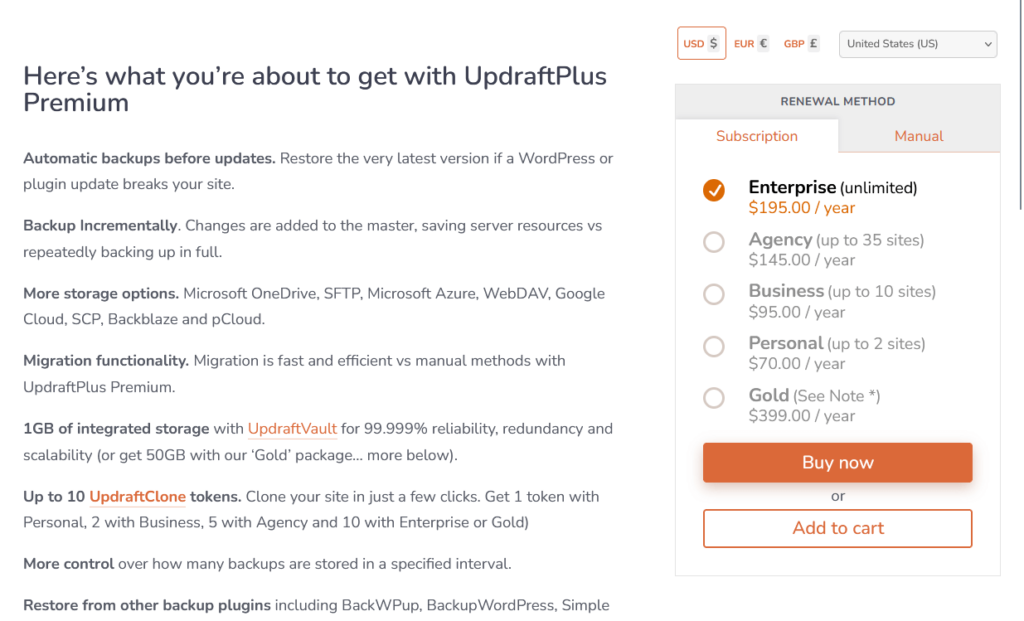
They have four basic plans:
- Personal (2 sites for $70/year)
- Business (10 sites for $95/year)
- Agency (35 sites for $145/year)
- Enterprise (unlimited sites for $195/year)
The gold package is like their extra that comes with more features like UpdraftCentral Cloud Unlimited, 10 UpdraftClone tokens, and 50GB UpdraftVault storage.
These are addon features separate from the main premium version (think of these features as “cloud” features).
Anyway, with flexible plans, both individual site owners and large organizations can have reliable backup solutions at affordable rates.
Money Back Guarantee/Refund
UpdraftPlus offers a limited refund policy for its premium products, though there is no automatic money-back guarantee.
Refunds are generally considered on a case-by-case basis and may be granted at the discretion of UpdraftPlus if a genuine technical issue is identified.
Here’s their refund policy:
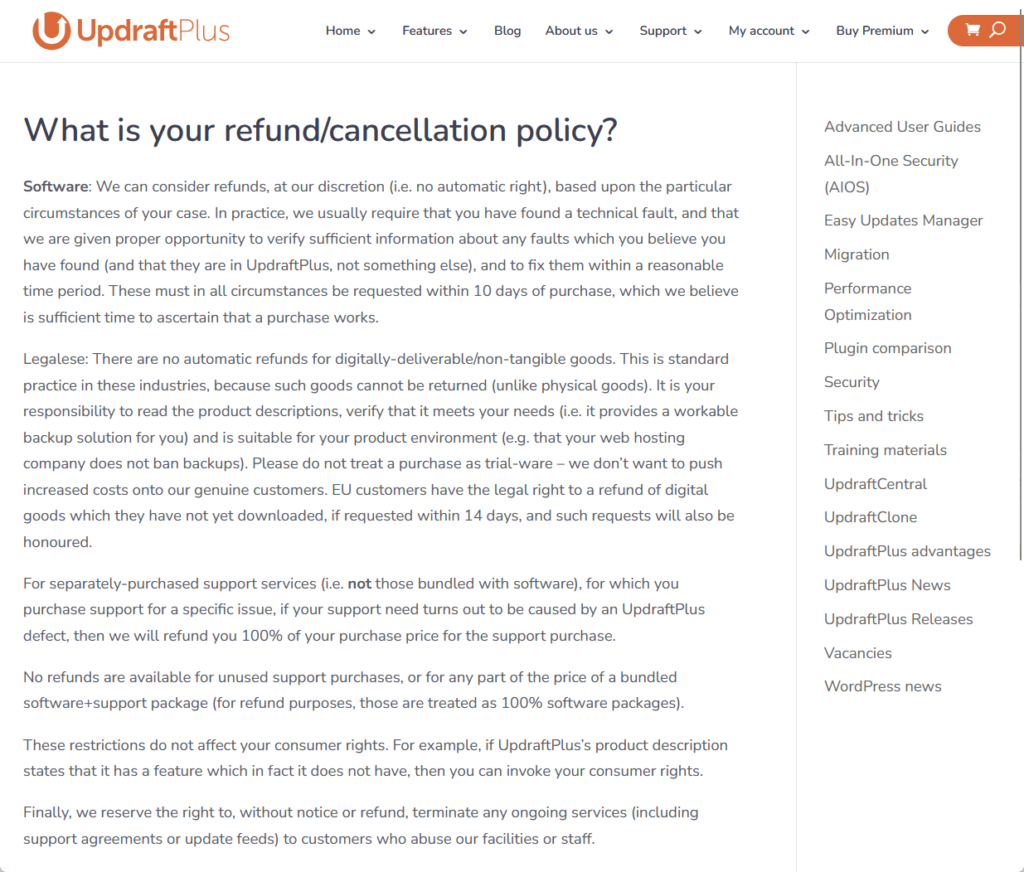
Refunds are typically granted only when there is a proven technical fault in UpdraftPlus that the support team is unable to resolve.
The refund request must be made within 10 days of purchase (generally considered enough time to evaluate the product’s functionality).
If you ever found one, you can initiate a refund request by submitting a support ticket through the UpdraftPlus website.
👋 My thoughts here
I feel like their pricing is fair.
Here are my thoughts:
- They have a lot of tiers that depend on how many sites are supported, which is great for flexibility.
- On the other hand, some may get confused with it, including the fact that these tiers don’t include their extra addons.
- Their money-back guarantee only applies if you find a technical error, which is okay considering they already have a free version.
Overall, the way they priced their plans seems to be strategized to cater to as many types of users as possible.
As for their refund policy, one can say it’s almost “non-existent”, but I guess it’s reasonable considering they have a nice, working free version available.
Final Thoughts
If you’re managing multiple sites or need automated, incremental backups and migration tools, the premium plan can save time and provide peace of mind with enhanced functionality.
However, if you only need basic backup and restore capabilities, start with the free version to check if it meets your expectations before upgrading.
Take advantage of the available support resources, and remember to review the refund policy to make sure it aligns with your comfort level, especially if this is your first purchase.
Take the next step in your website journey with Darrel Wilson’s Elementor Template Kits.
They provide a fast, no-fuss way to create stunning websites without needing advanced coding skills.

Secure lifetime access to all premium Elementor template kits:
- Get lifetime access to all premium template kits designed for Elementor
- Complete with 2 years of dedicated support
- Only for $99 — that's already for the lifetime access
Whether you’re safeguarding your site or designing a new look, these kits give you the tools to create a polished, professional website in no time.